1. DYNAMO ERP SYSTEM DEFINITIONS
1.1 Stock Card Definitions (STOCK00)
1.2 Current Account Card Definitions (CARI00)
1.3 Workplace Information (IDARI00)
1.4 Product Tree (BOOM01)
2. THE SALES PROCESS
2.1 Sales Offer(TEKL40)
2.2 Sales Order(STOCK40)
3. THE PURCHASING PROCESS
3.1 Purchase Request(STOCK47)
3.2 Offer to Purchase(STOCK45)
3.3 Purchase Order(STOCK46)
3.4 Purchase Consignment Note (STOCK29)
3.5 Purchase Invoice (STOCK74)
4. PRODUCTION PROCESSES
4.1 Creating One-to-One Work Orders(STOCK40)
4.2 Assignment of Work Order Material (Raw Material) (STOCK83)
4.3 In-Workshop Time Tracking Plug (SFDC20)
4.4 Production Plug (STOCK20)
5. SHIPMENT PROCESS
5.1 Shipment (STOCK60)
5.2 Sales Invoice (STOCK70)
Orders received from customers within the supply-demand cycle are provided by enterprises with financial resources, labor, machinery, etc. the components are brought together and go through various processes within a plan, and the products or services produced are brought together with customers. Dec.
Many methods are used to ensure the control of this entire cycle and to manage it effectively. Erp programs are one of the tools of these methods.
The procedures performed step by step on Dinamo Erp from the order entry of a product to the product shipment will be examined.
1. DYNAMO ERP SYSTEM DEFINITIONS
1.1 Stock Card Definitions (STOCK00)
The introduction of each input sold, purchased and produced in an Erp program to the program by detailing it according to the needs may be the first step. Stock card applications are used for this purpose. The STOK00 application for Dinamo ERP is an application in which stocks are identified in the Erp system in a very detailed way.
It is necessary to have a coding approach that should be taken into account when opening the stock card. With this approach, it is aimed to keep the data in a regular and hierarchical structure.
The Main and Detailed code approach has been designed in Dinamo Erp coding systematics.
In this system, stocks will be grouped primarily as Main code according to the user's needs. Then the Detailed codes will be included in these groups.
An example is given in a fiction table.
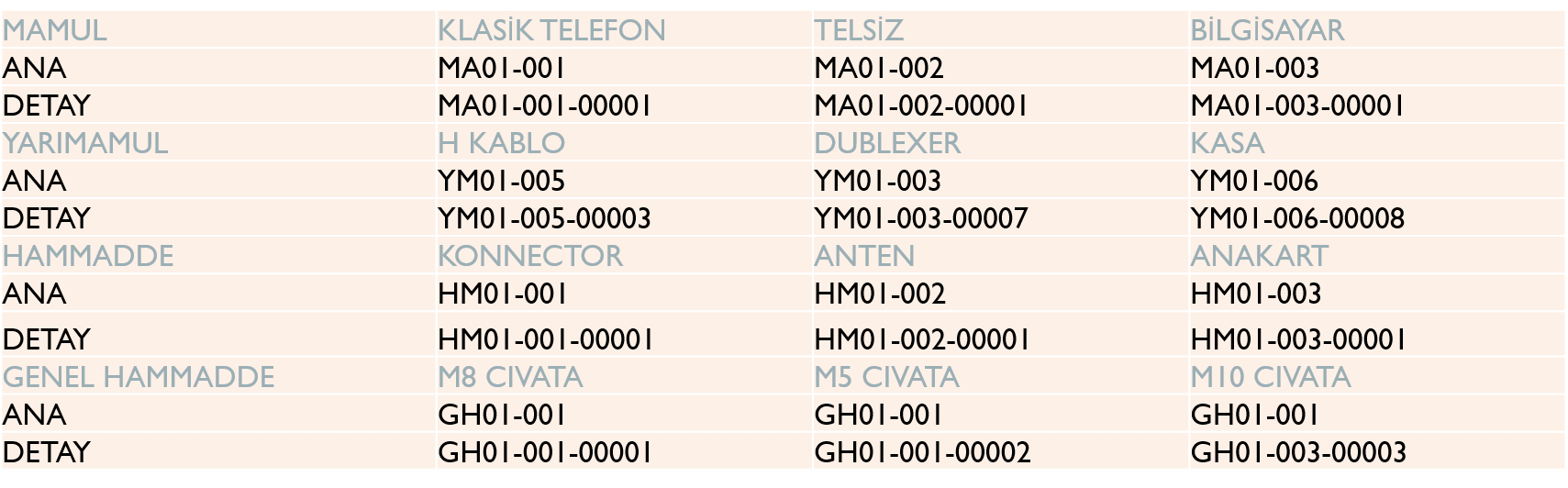
If you want to open a stock card with the specified approach, the steps are:
· At this stage, first of all, if the stock units are not defined, these units should be defined.
· To define stock units, right-click on the Unit option in the STOK00 application and select 'Change Group Code Definitions (STUNIT).
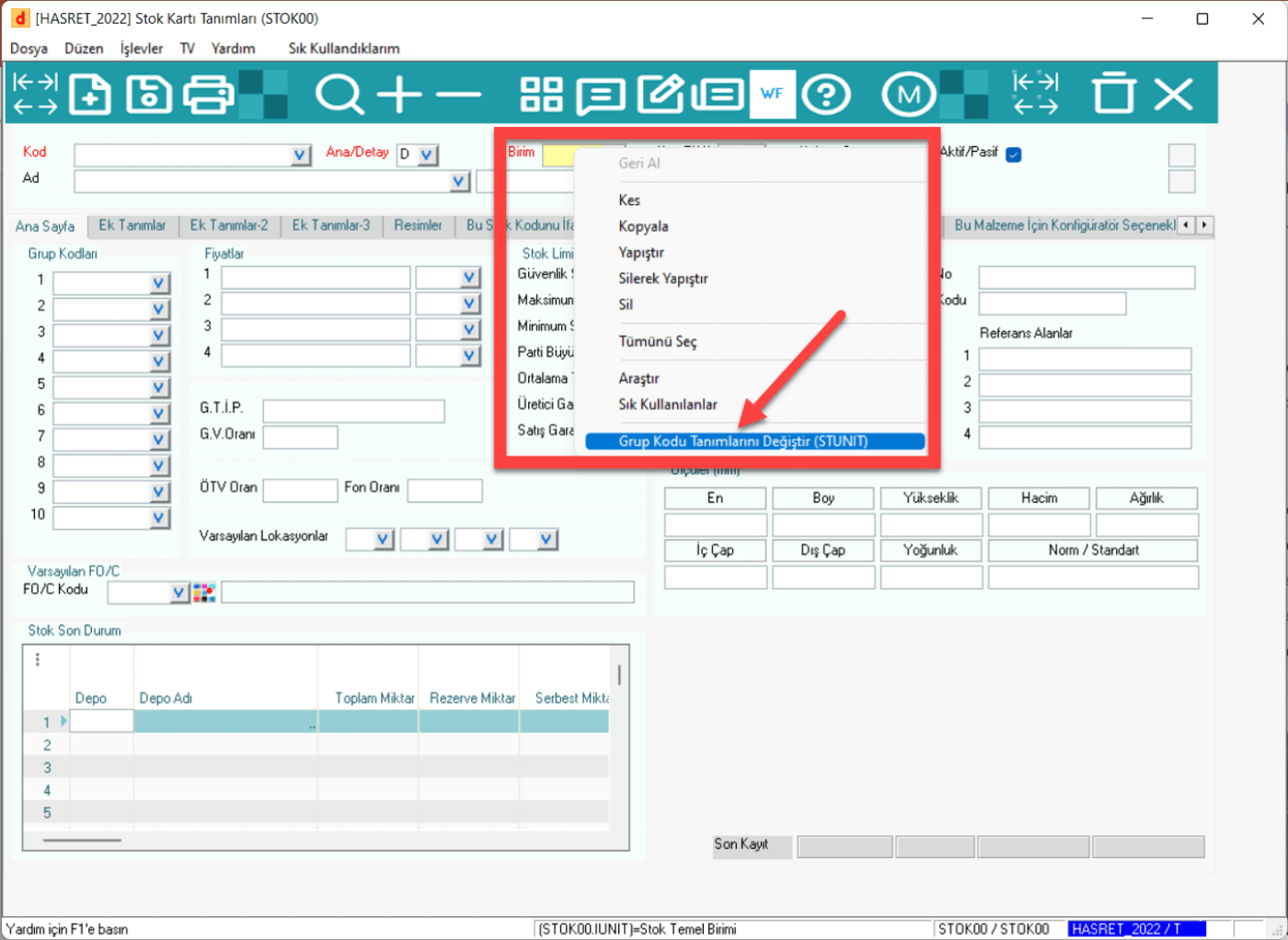
· On the screen that opens, units are entered in the code column, and the equivalent of the units are written and saved in the description section. The units will be defined.
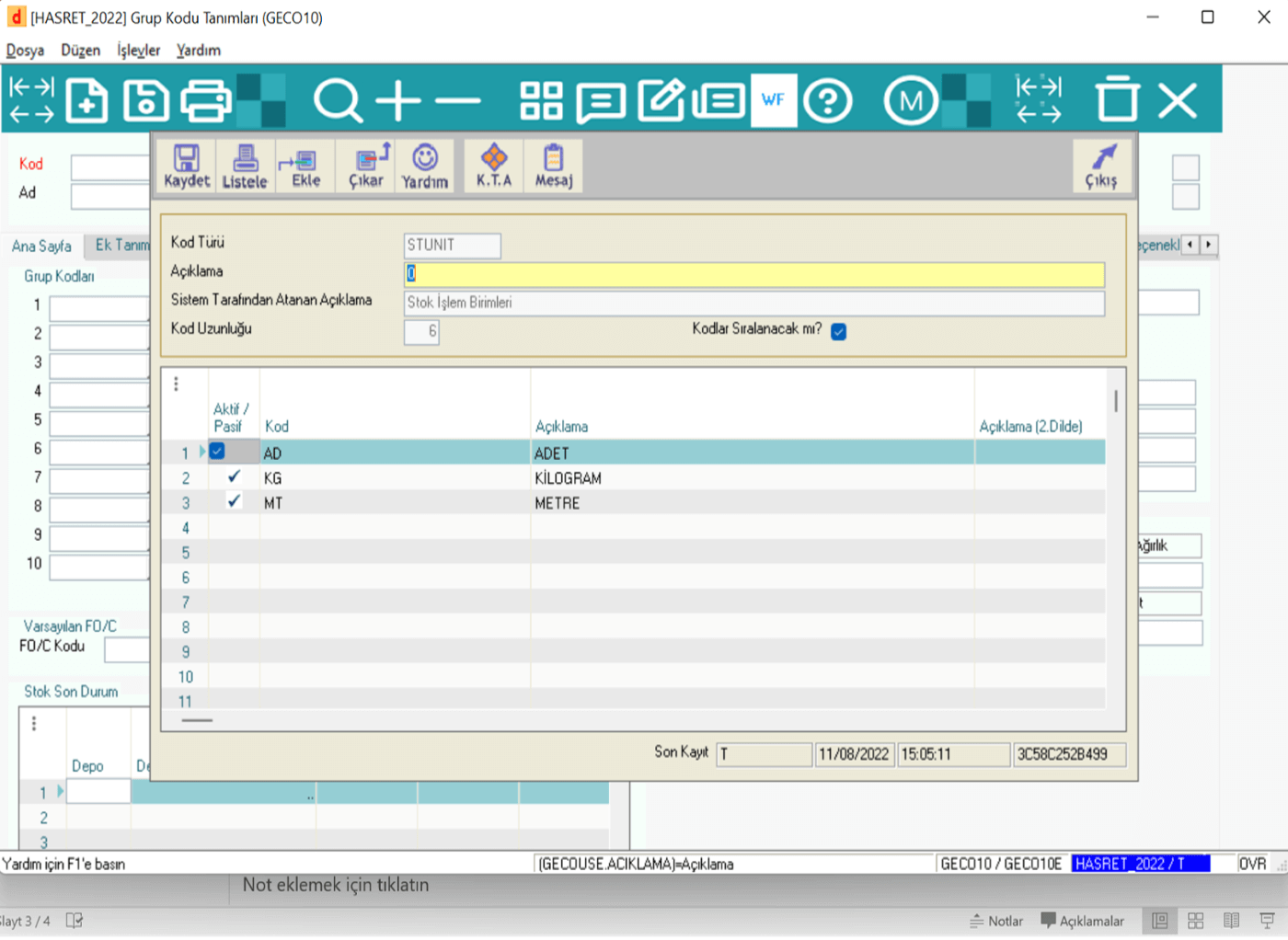
· After the main code is defined according to your code systematics, the detail codes will be defined respectively.
· To create a designated stock card, respectively, the code created systematically is entered into the field specified by the Code, and then the appropriate one is selected from the Main/Detail binary option for its place in the card hierarchy, and then the Unit is entered. In the Card Type detail, the type of stock is selected.
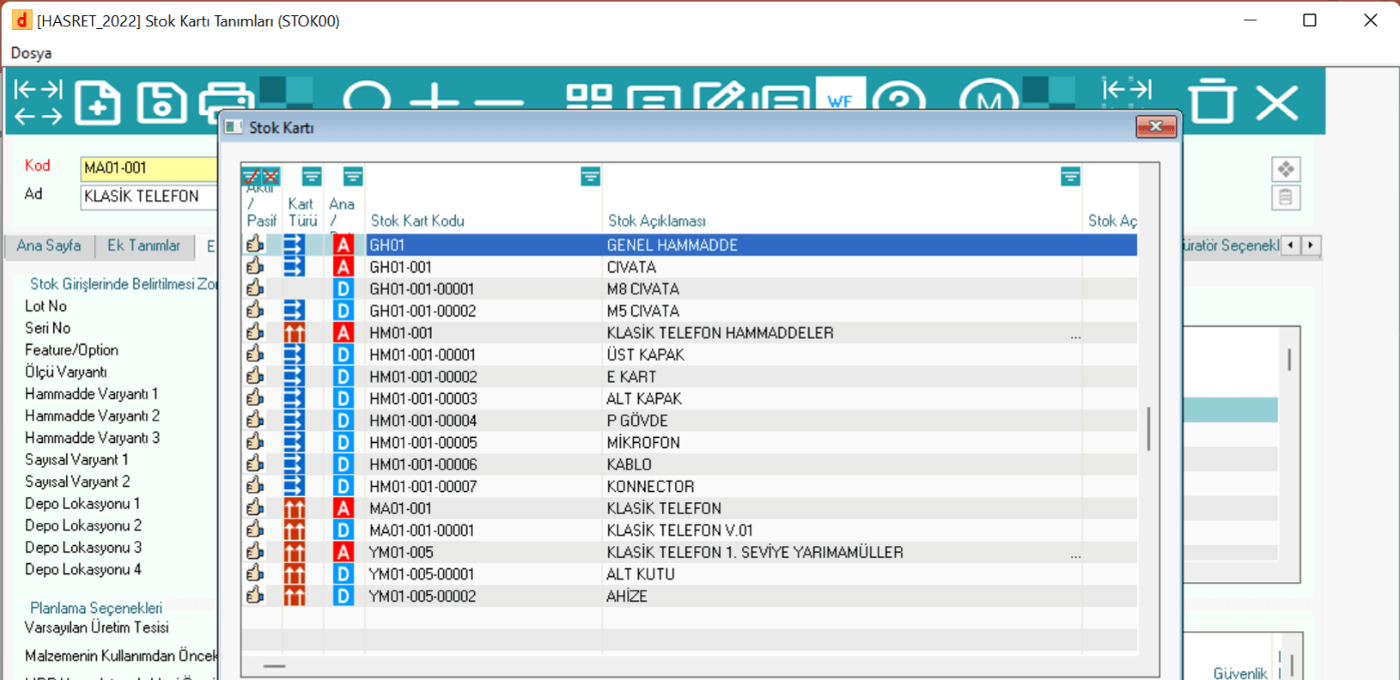
·
A created inventory card hierarchy is available in the example.
1.2 Current Account Card Definitions (CARI00)
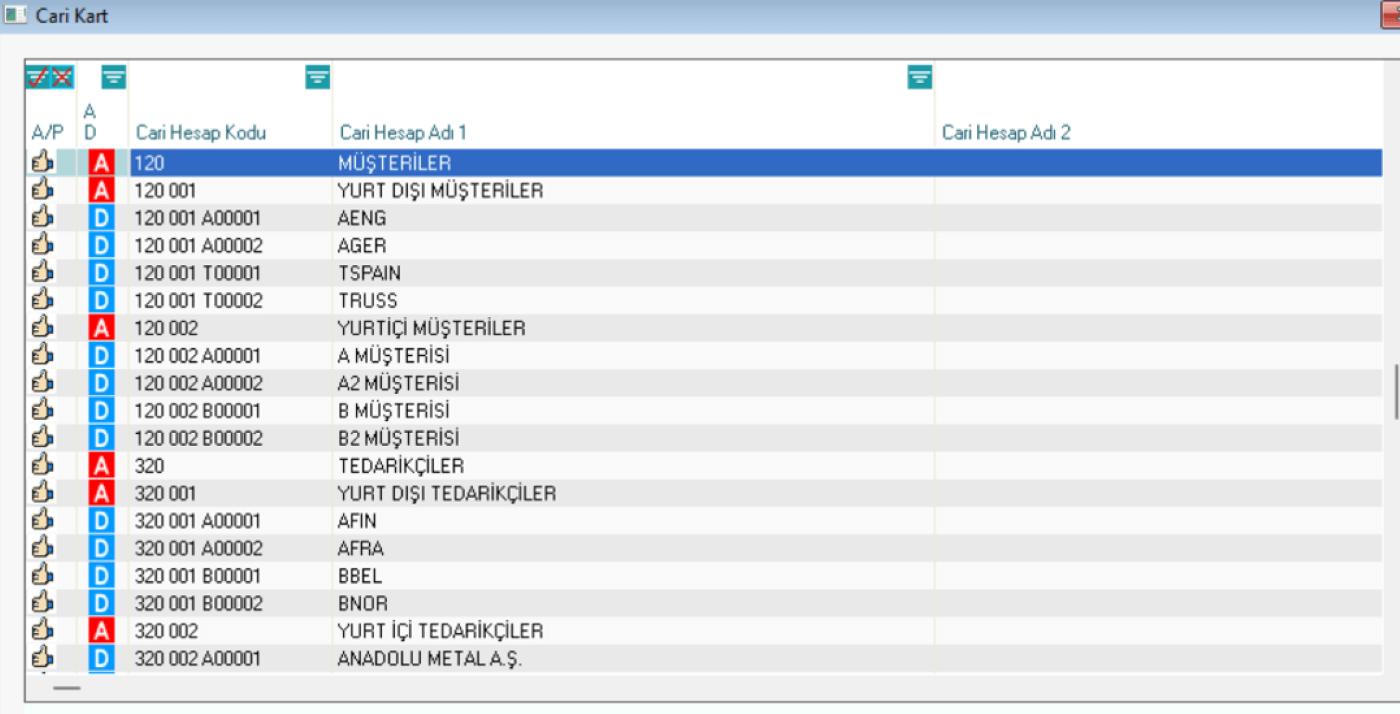
Current account codes are used by customers, suppliers, banks, etc. these are cards where different addressees are expressed in the Erp system and transferred to the Erp system with a hierarchical approach. In short, they are company identities. These codes are classified in Dinamo Erp with the MAIN and DETAIL code approach. Detailed cards can be created with the approach that is already in the general accounting cards. An example of this is the following.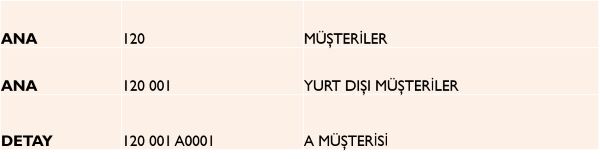
When opening the current account card;
· After the code hierarchy is set up, Current Account Card Definitions are selected under the Finance module in DinamoErp+.
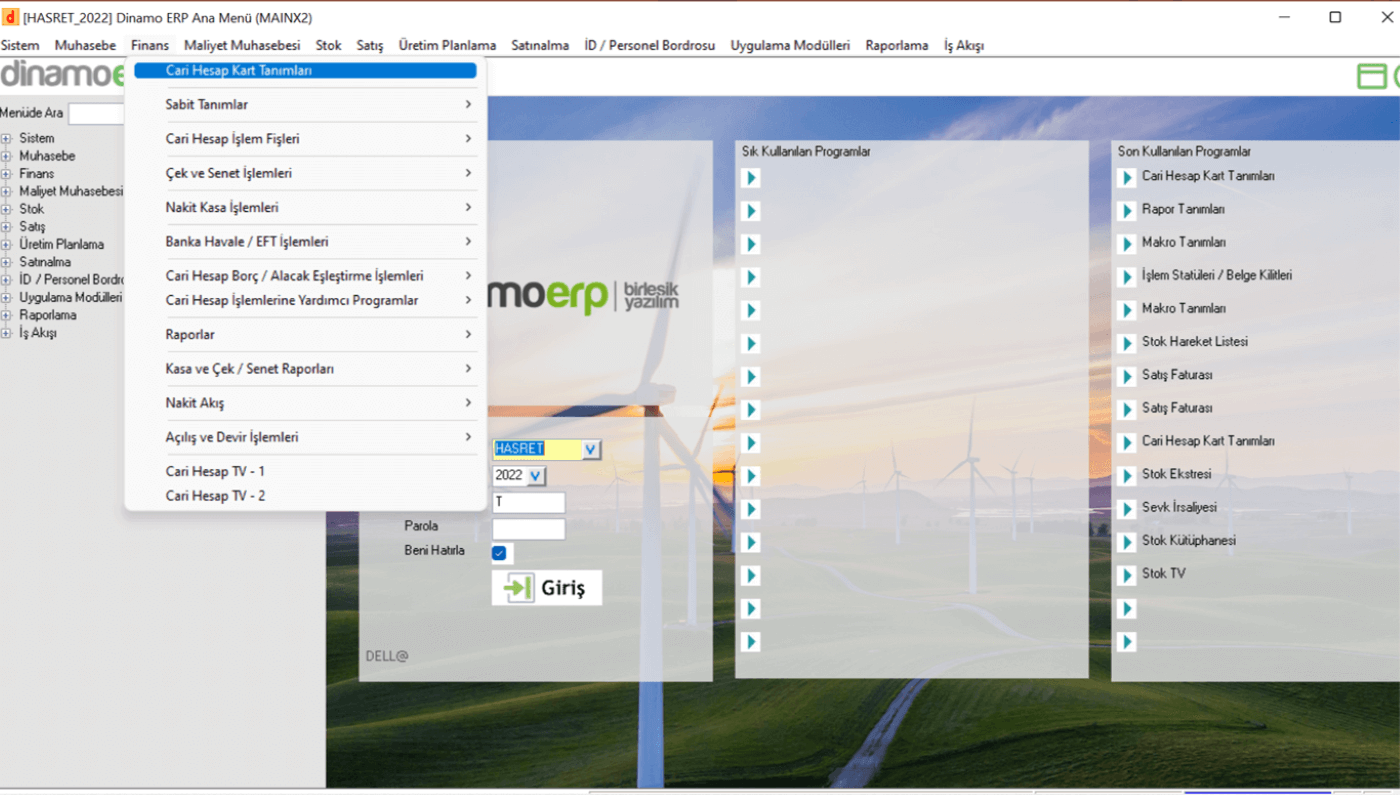
·
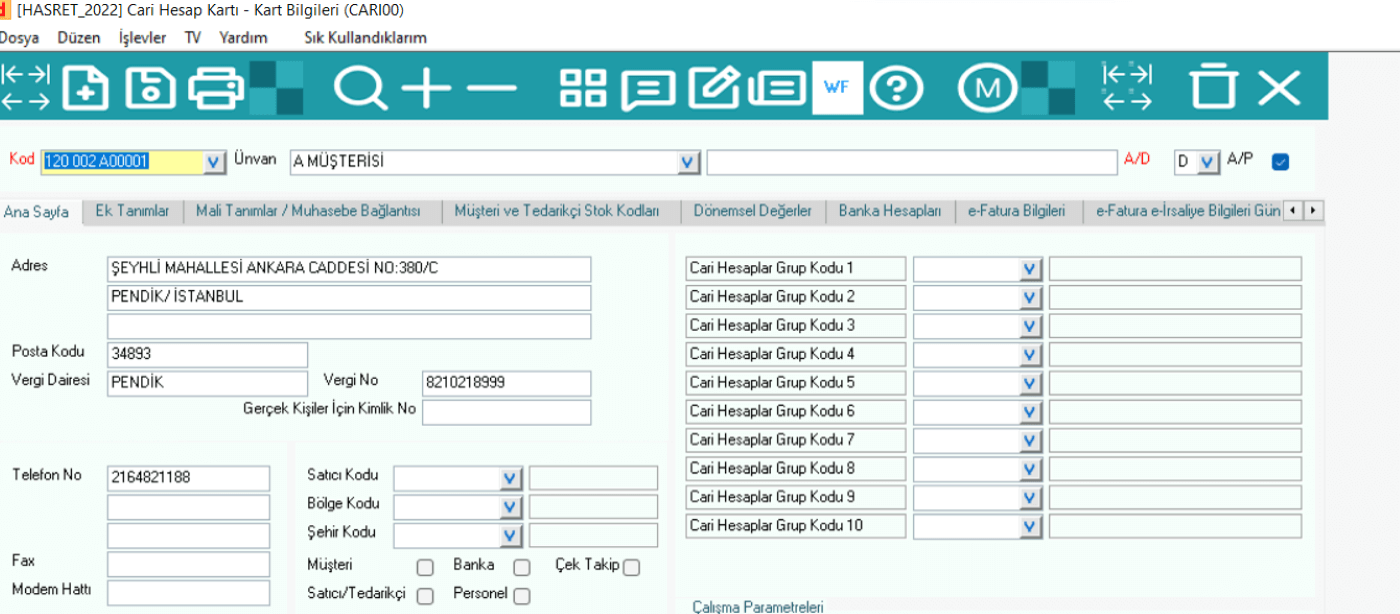
The space specified by the code is filled with the specified current account code, and the title is filled with the corresponding current card title or the main code name in the hierarchy. At this point, the current account card can be saved when it is called save. However, there are lines that must be filled in order for the current account card to work healthily.
·
It is necessary to enter the information limited to the red box containing the address, tax number or ID number lines on the current account card and the accounting link line into the system. A simple current card is created with this data. However, in order to create documents requiring interaction such as e-Waybill, e-invoice, more detailed information must be processed on the current account card. There are subject-based documents related to these transactions. It can be examined.
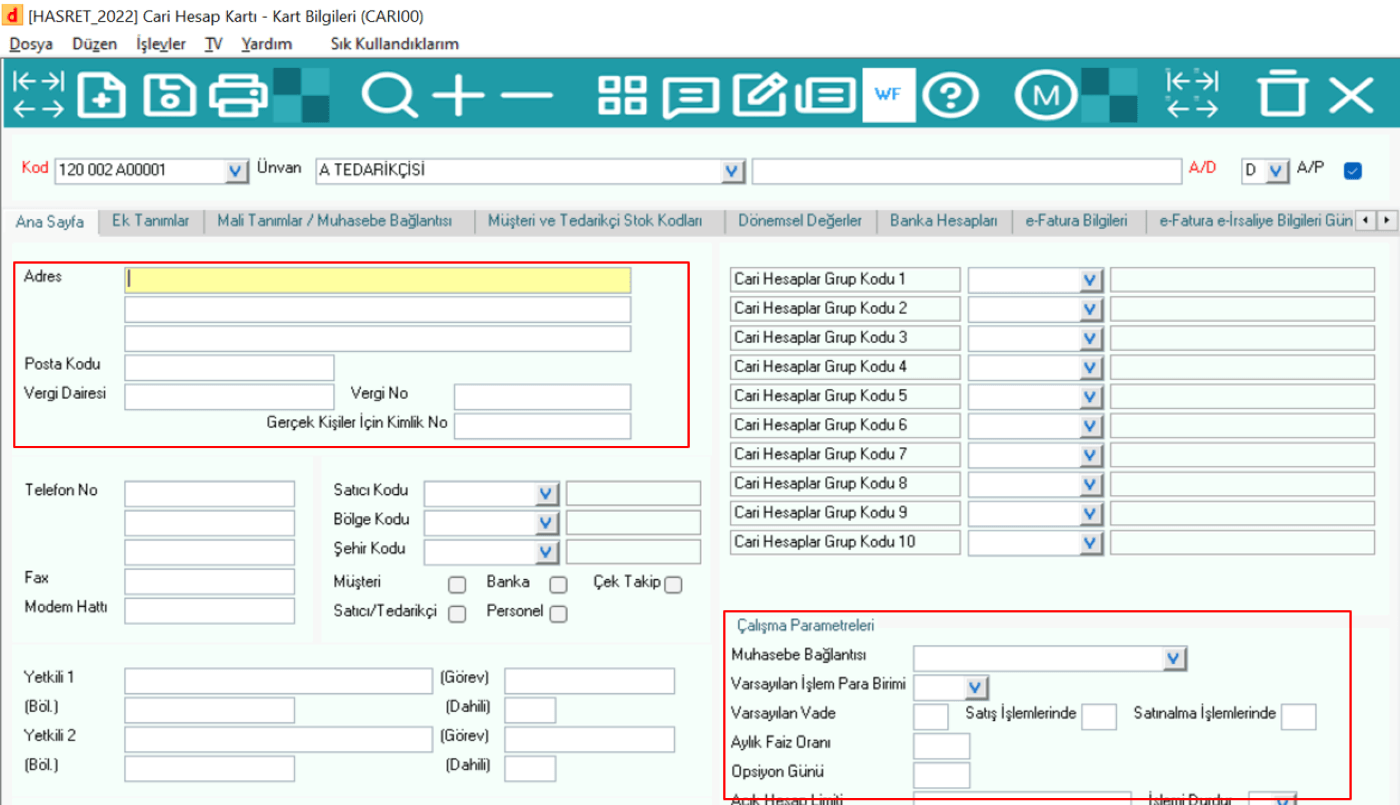
An example for the current codes created.
1.3 Workplace Information (IDARI00)
In order for the Erp program to work correctly, the customer IDs must be defined via current cards, as well as the Erp user company must have an ID in the program.
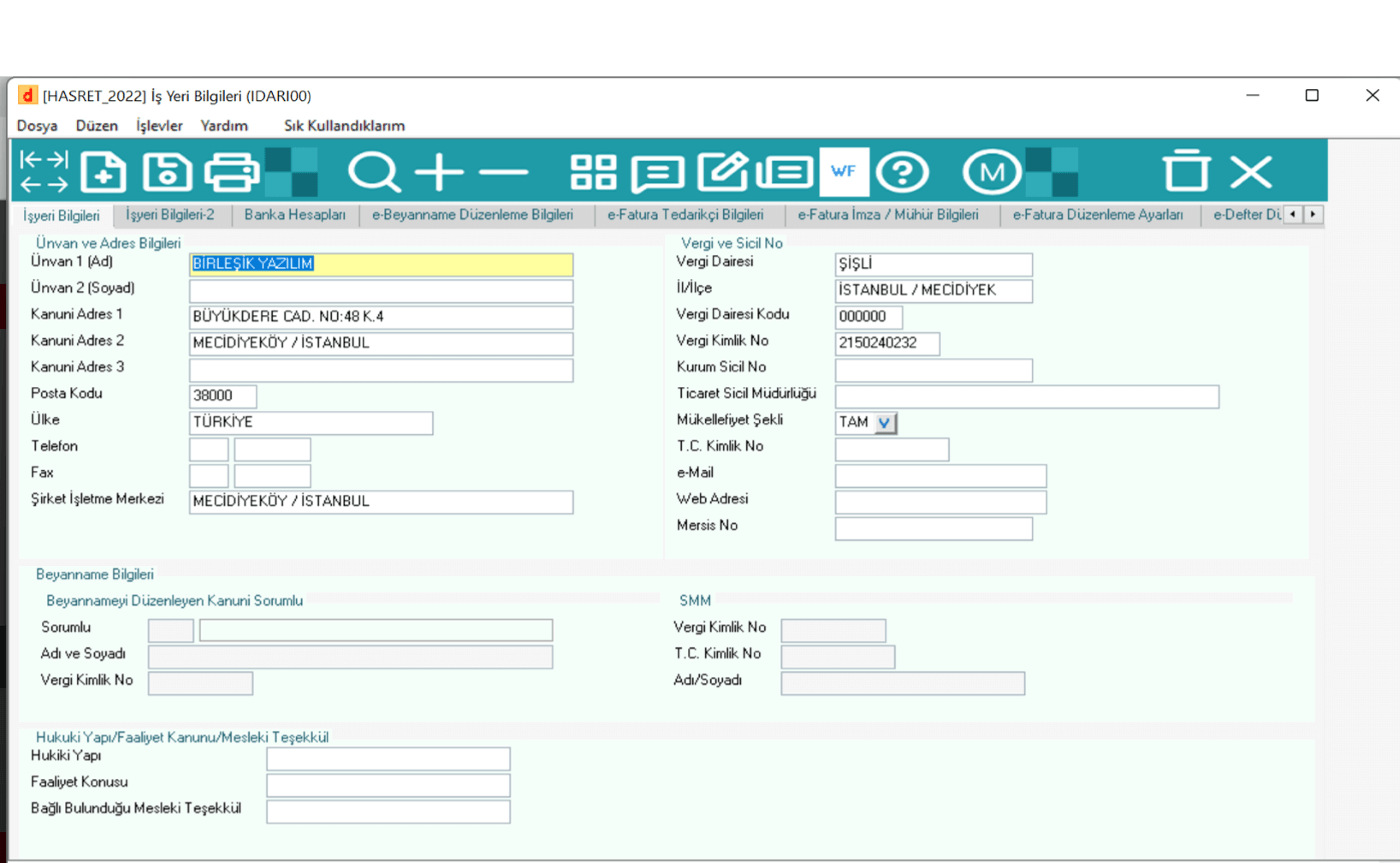
User company information, addresses, bank accounts, tax identification information, e-document information, etc. all of them are defined in the Workplace Information(IDARI00) application of the Dinamo Erp program.
Workplace Information (IDARI00): Erp user company information.
1.4 Product Tree (BOOM01)
Product trees are one of the sine qua non components for an Erp program.
Product trees that extend to every point from purchasing to production planning, from costing to various reporting processes should be designed very carefully and in line with the company's needs.
If the product tree designs and developments are insufficient and incomplete, the management of the company will proceed in a chaotic manner and the correct data will never be obtained. This means that processes that cannot be measured and evaluated cannot be managed and will result in enormous losses.
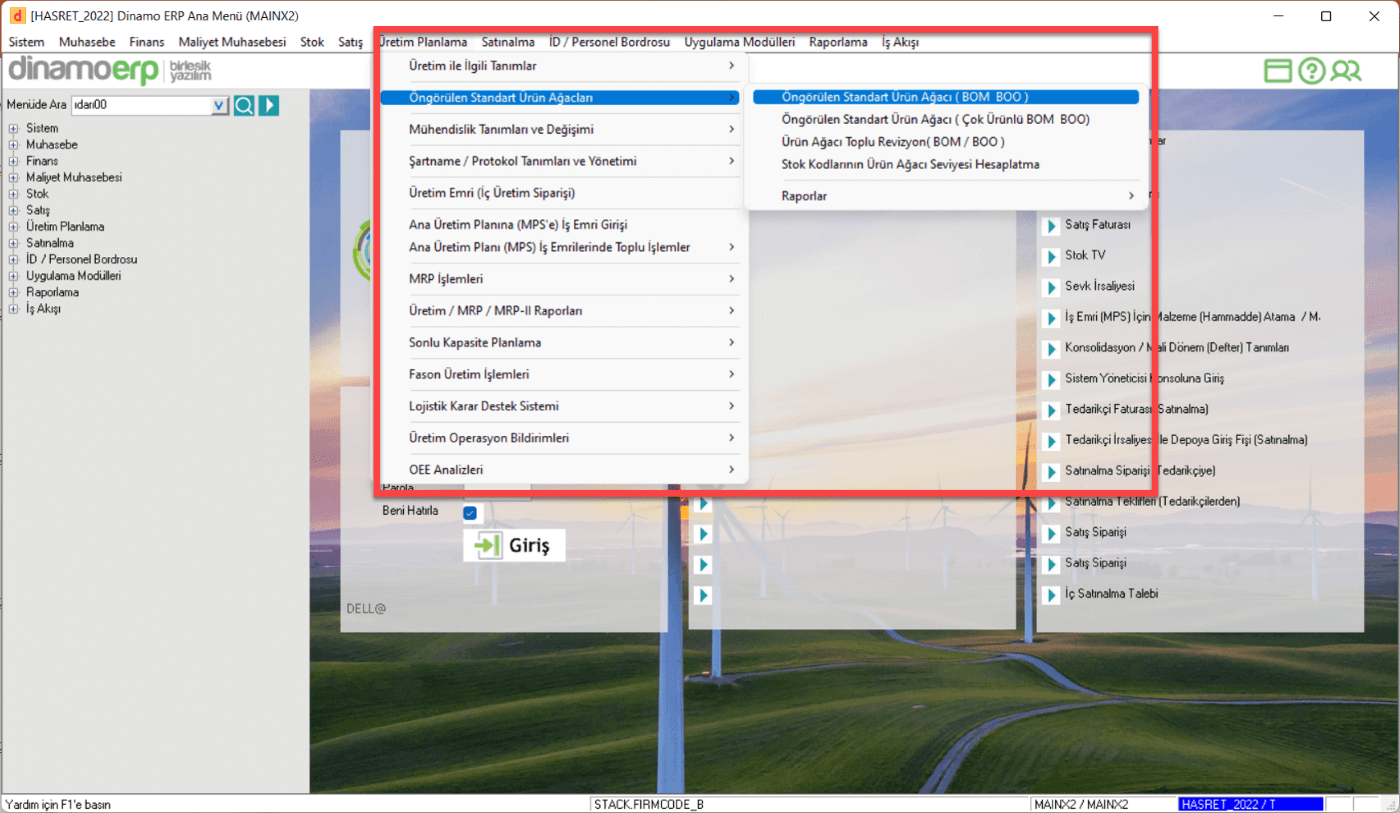
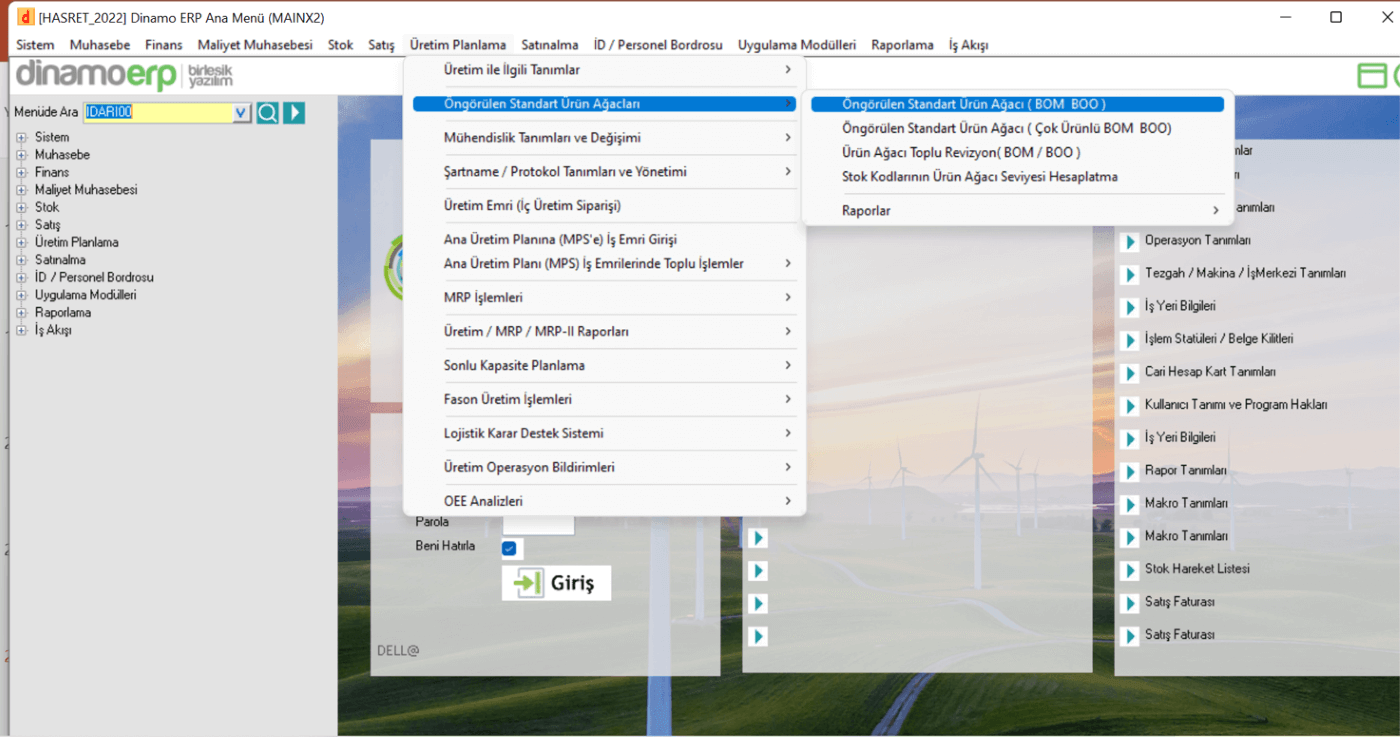
Product trees are defined using the Standard Product Tree (BOM BOO) application, which is provided under the Dinamo Erp Planning module.
If it is used for the definition of product trees, machine definitions, operation definitions, operator definitions, etc. it is also mandatory to identify the different components required. These definitions vary according to the product and the need for detailing.
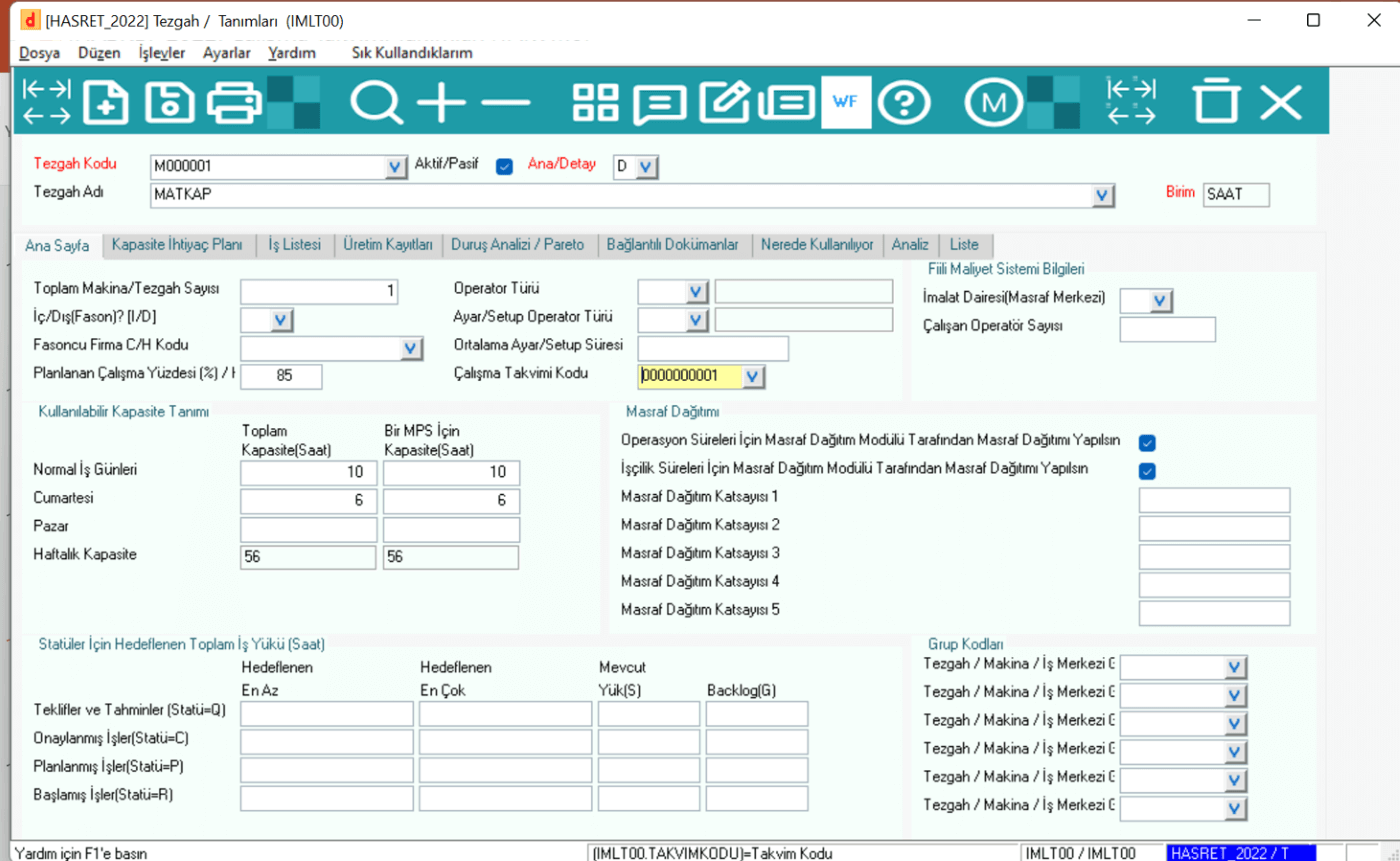
Machine Definitions (IMLT00): In order for the production setup to be created correctly and the processes to be planned on the Erp, machine definitions must be made. It is extremely important to define these definitions, especially since they will be used during the production phase of the finished product.
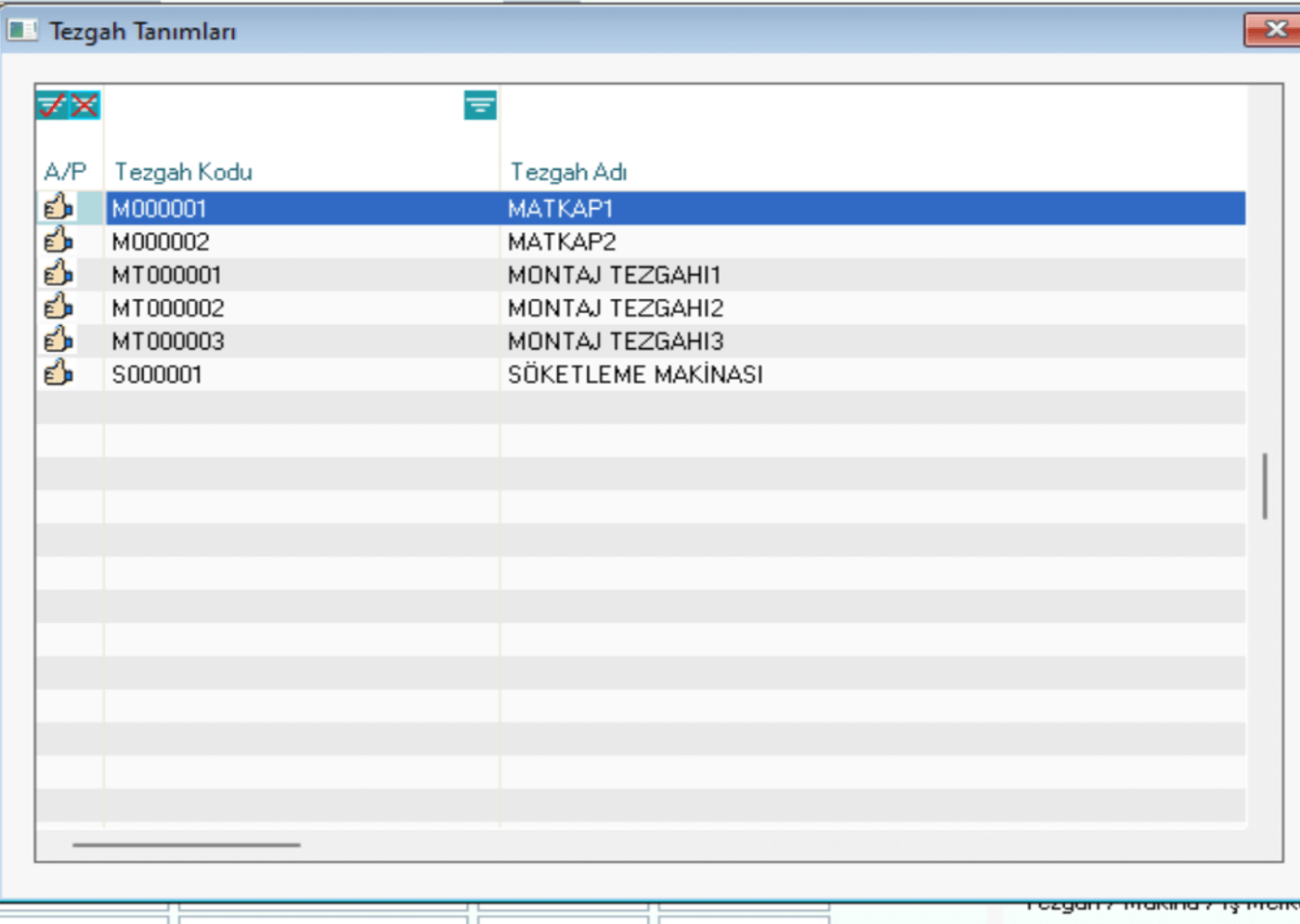
Defined sample workbenches:
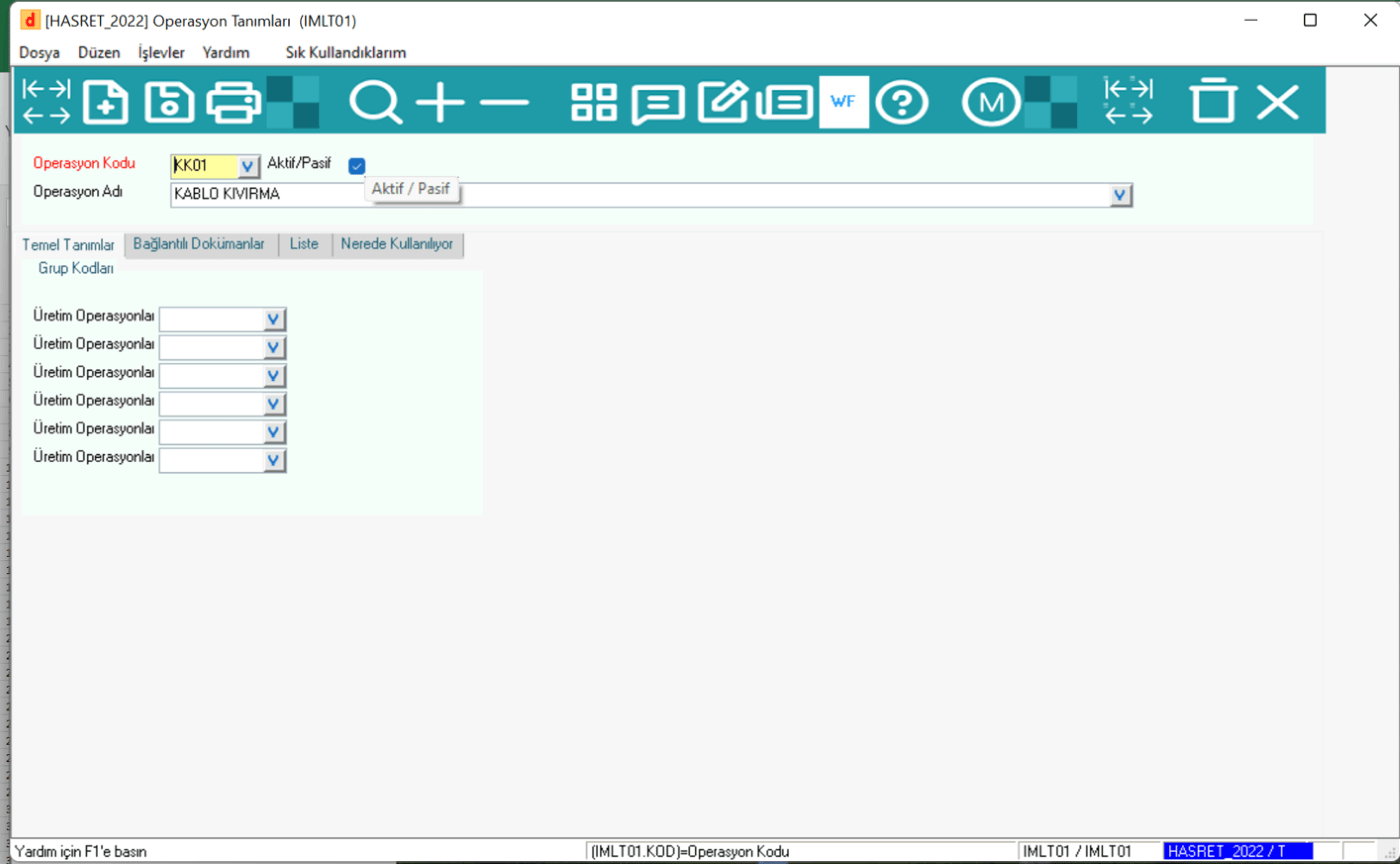
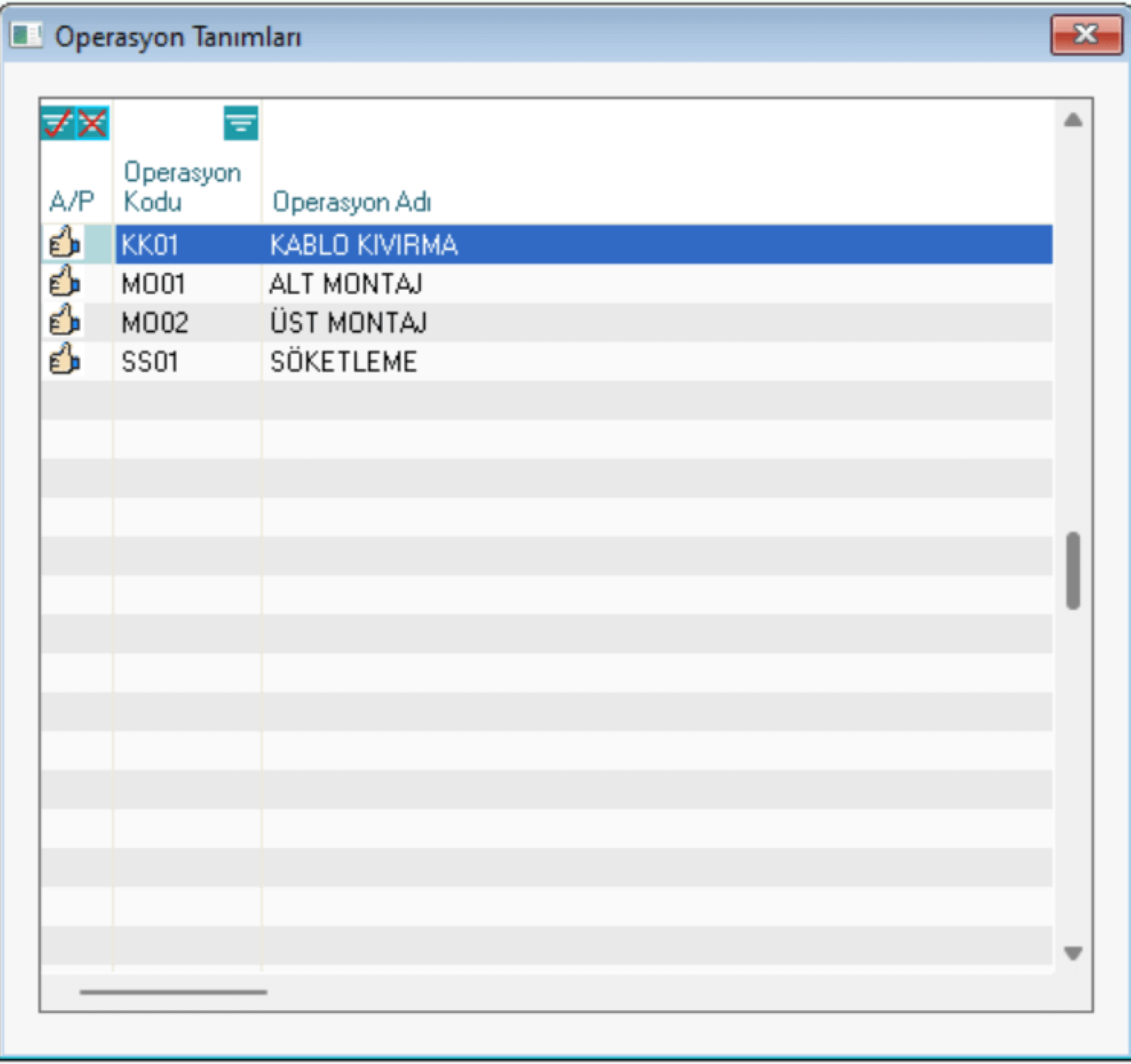
Types of Operations(IMLT01): This is the application in which the processes are defined. The works performed during the production phase of the finished product, such as sandblasting, painting, drilling, etc., the processes connected to the finished product are defined with the help of this application in Dinamo Erp.
Types of operations:
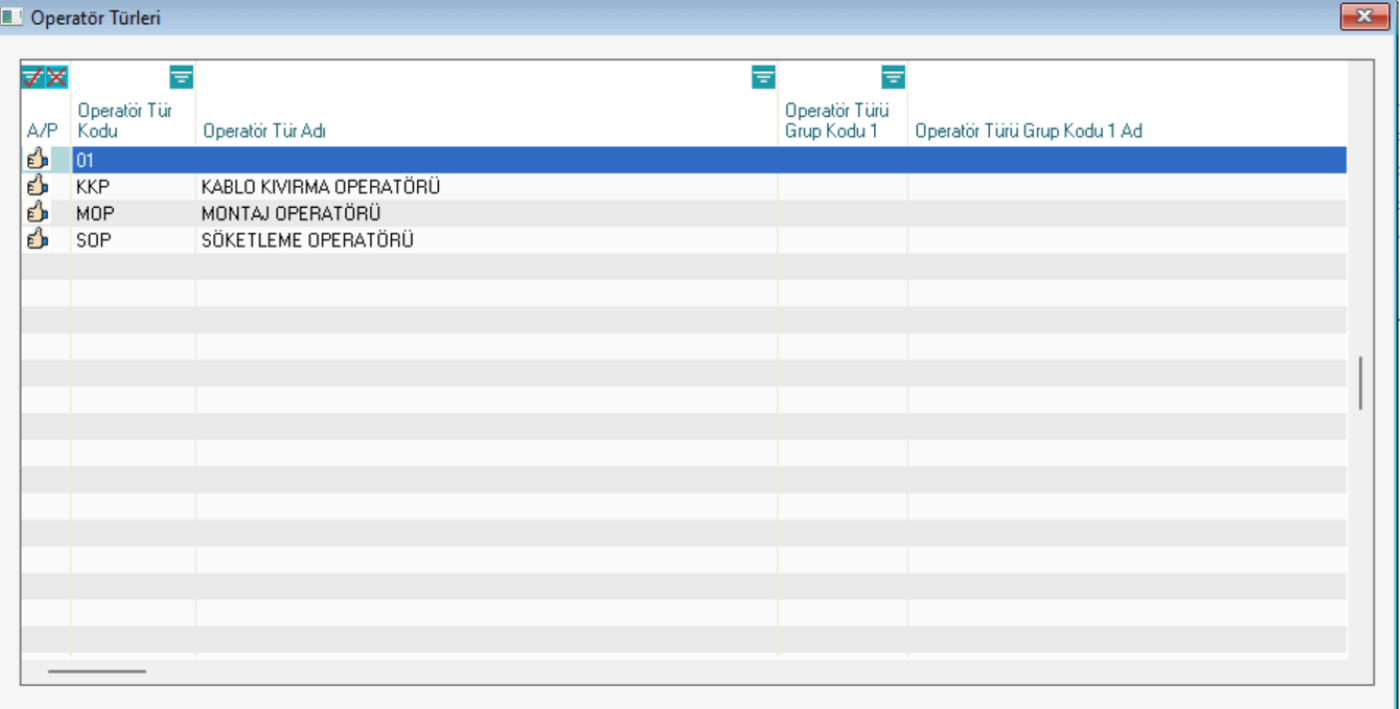
Operator Types(PERST0): The operator who performs an operation in production is defined through this application.
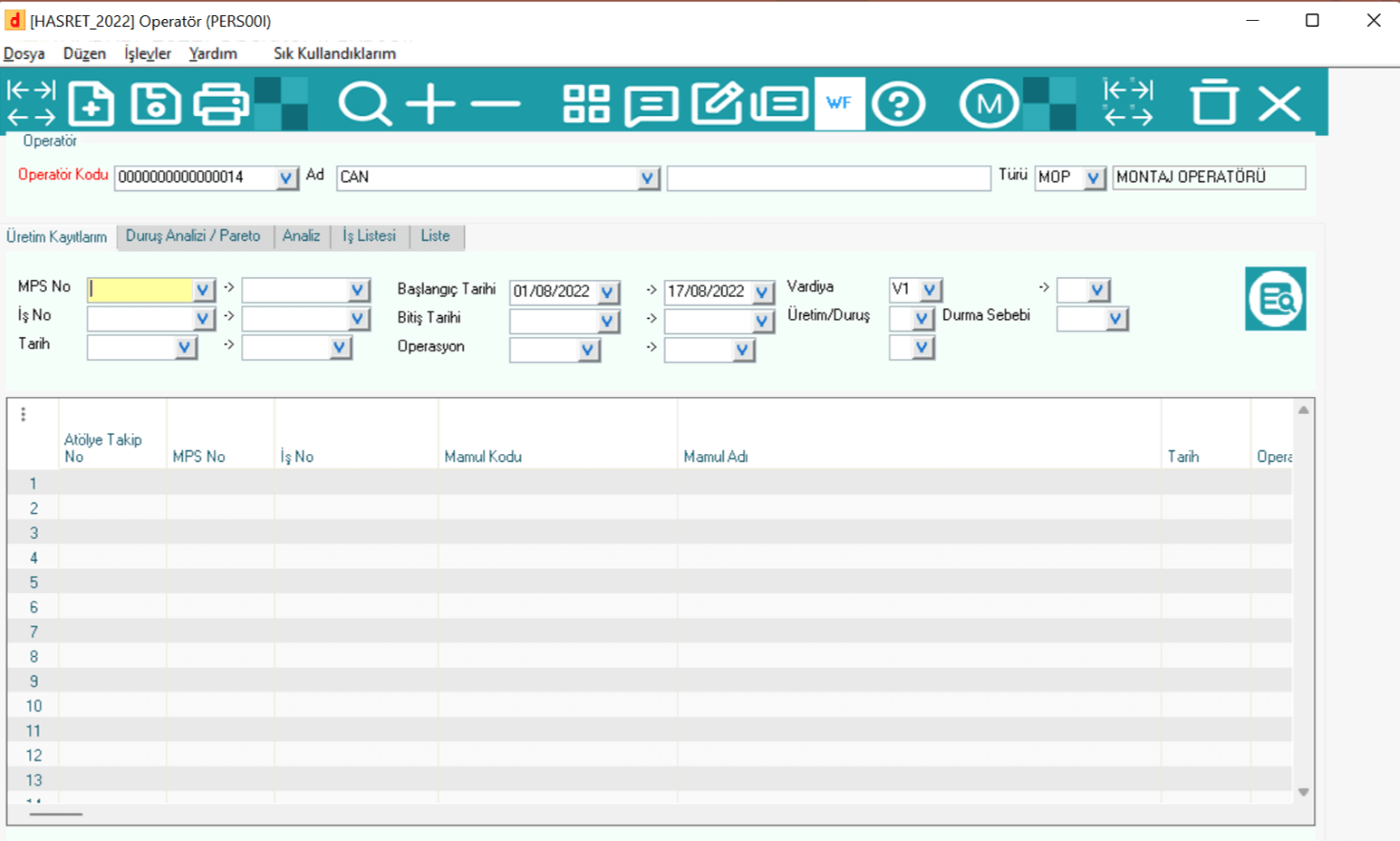
Operator Definitions(PERS00I): After operator types are defined, operators should be defined and their types should be specified. The application is designed for this purpose.
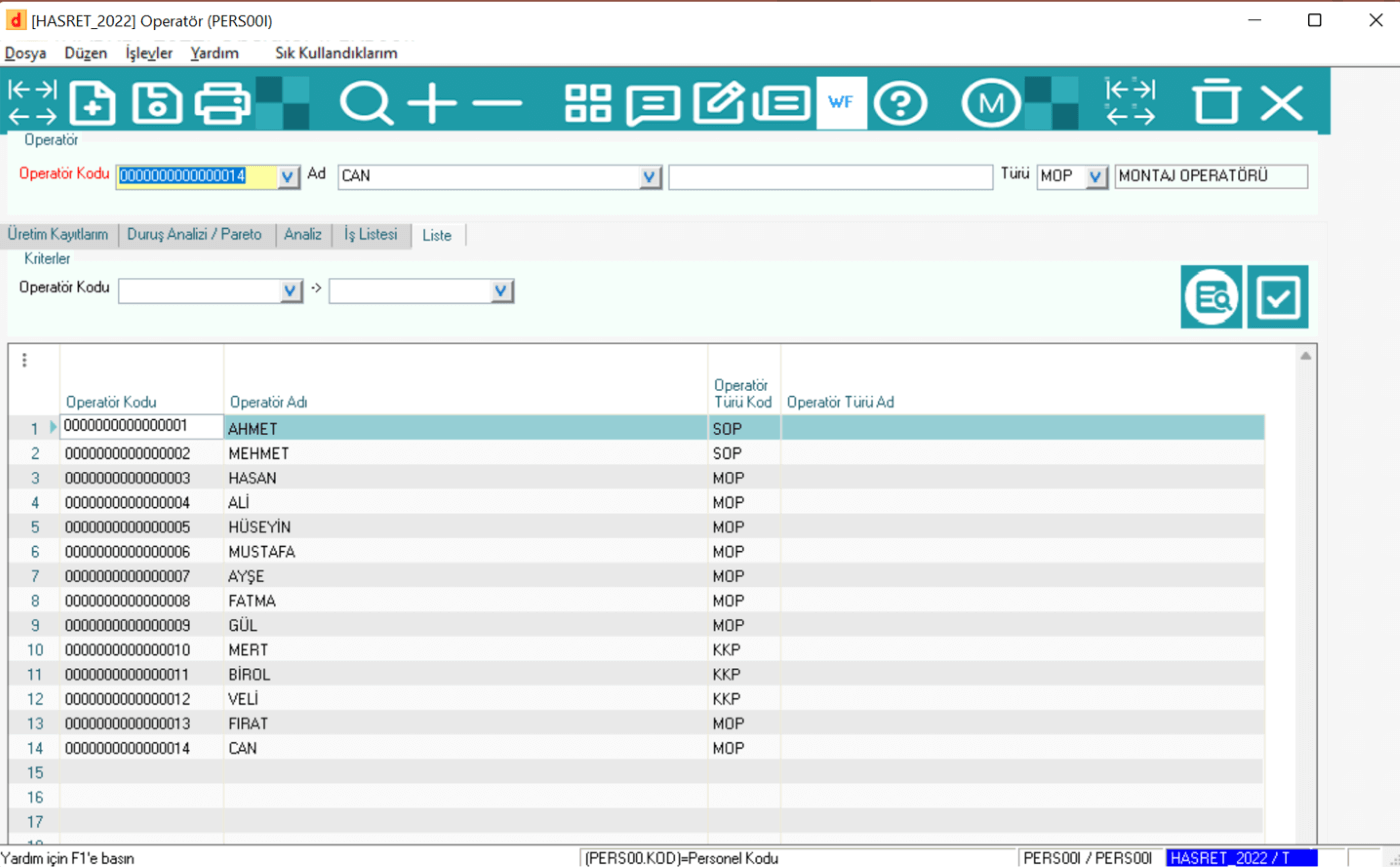
Operator Definitions(PERS00I): Saved operators.
Predicted Standard Product Tree BOM BOO(BOMU01): After the factors required in production are defined, the stage of designing product trees in Dinamo Erp is started.
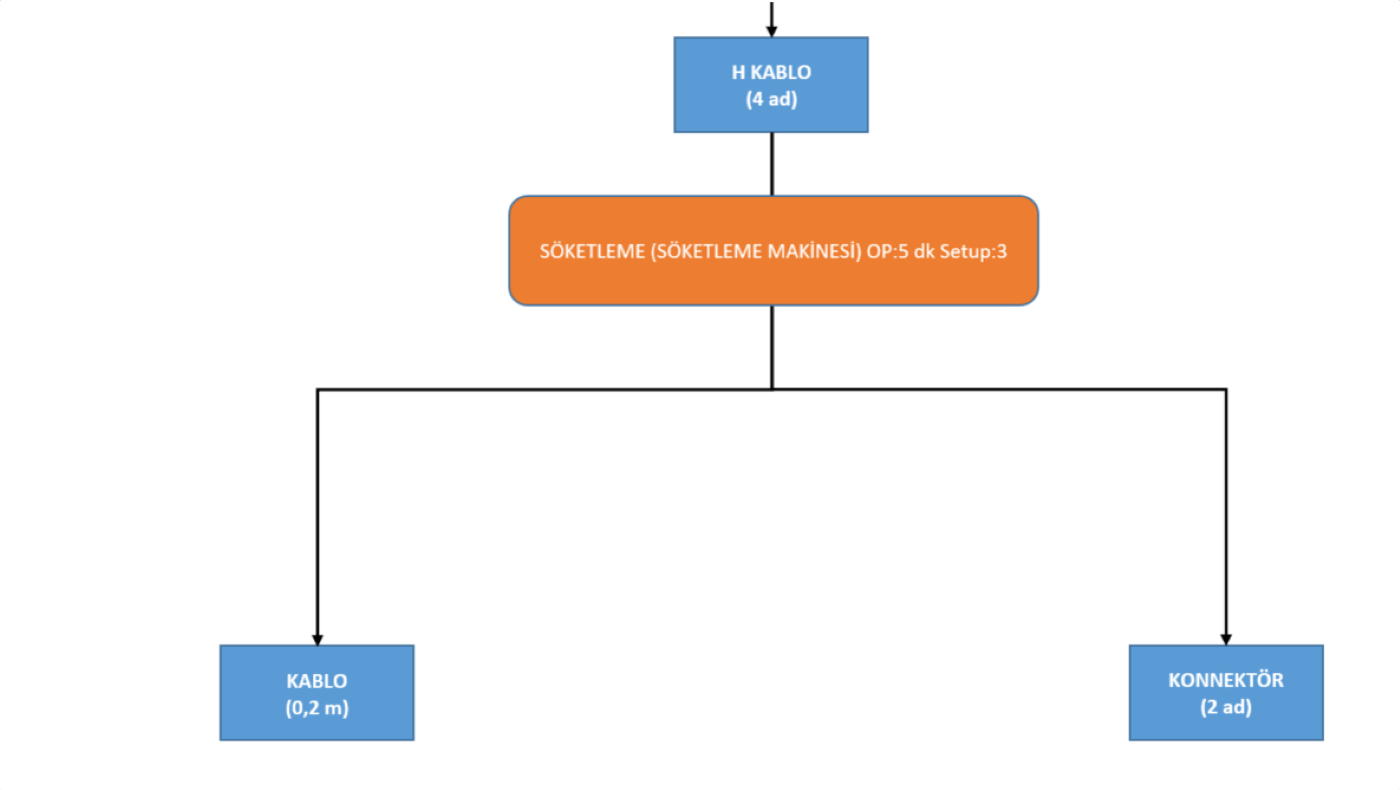
H cable product tree: The simple level material shown in the picture is a part consisting of 2 types of raw materials at a simple level and produced as a result of 1 operation on 1 machine. After the product tree application for this part, the processes from order to shipment will be examined at a simple level.
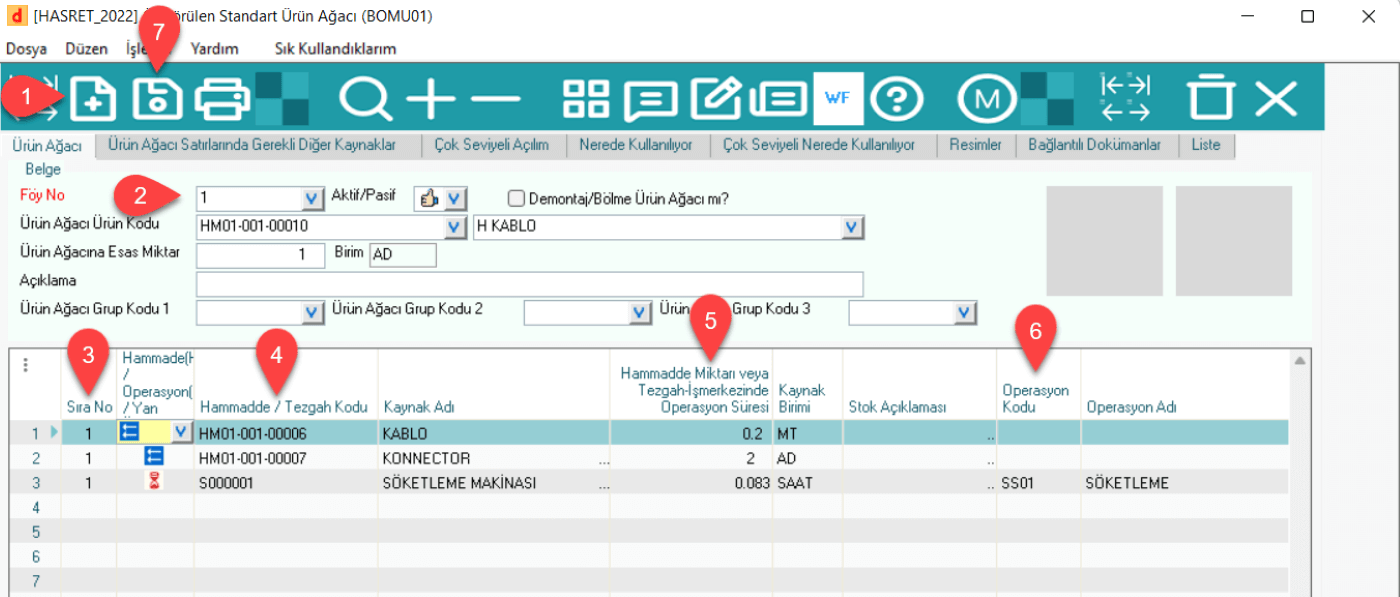
Stages of creating a product tree in Dinamo Erp:
First of all, the BOMU01 application opens.
· A product tree sheet is created with the help of the new button.
· The stock item to be created in the product tree is selected.
· Raw materials and machine tools are sorted according to the flow of production from top to bottom.
· Raw materials and operations that are at the same stage are given the same sequence number.
· Raw material quantities and operation times are processed.
· Operation codes are selected in the machine rows.
· Finally, the document is saved and the product tree is created.
2. THE SALES PROCESS
Sales processes start with a simple sales offer in ERP programs and then continue with an order.
2.1 Sales Offer(TEKL40)
In Dinamo Erp, the sales offer is created through the TEKL40 application.
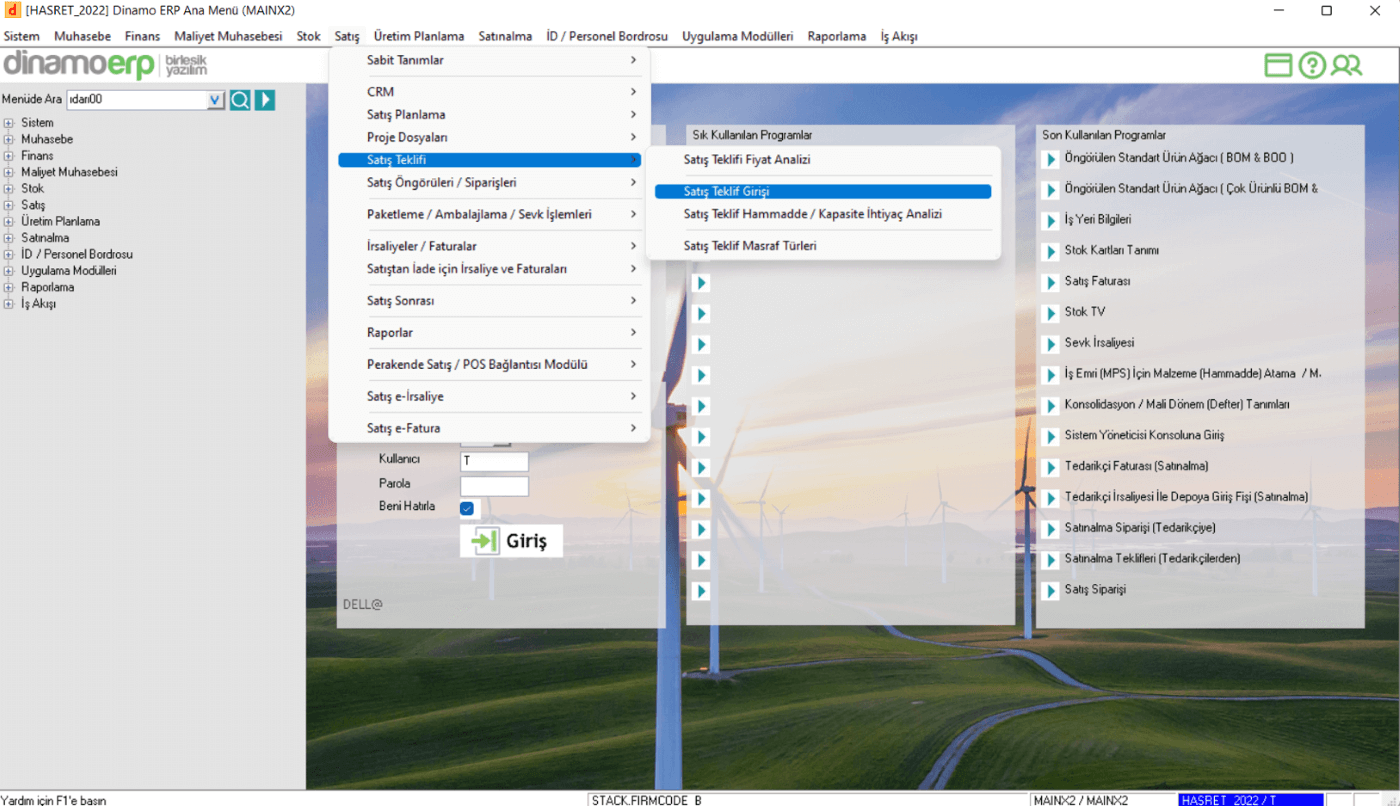
· Stages of creating a Sales Offer:
· Under the Sales module, a Sales Offer and then a Sales Offer Entry are selected.
· A new document is created with the new button.
· The current bid is selected.
· Stock code, quantity, price, dates, etc. in the columns for the offered stock item. mandatory information is filled in.
· The offer is saved.
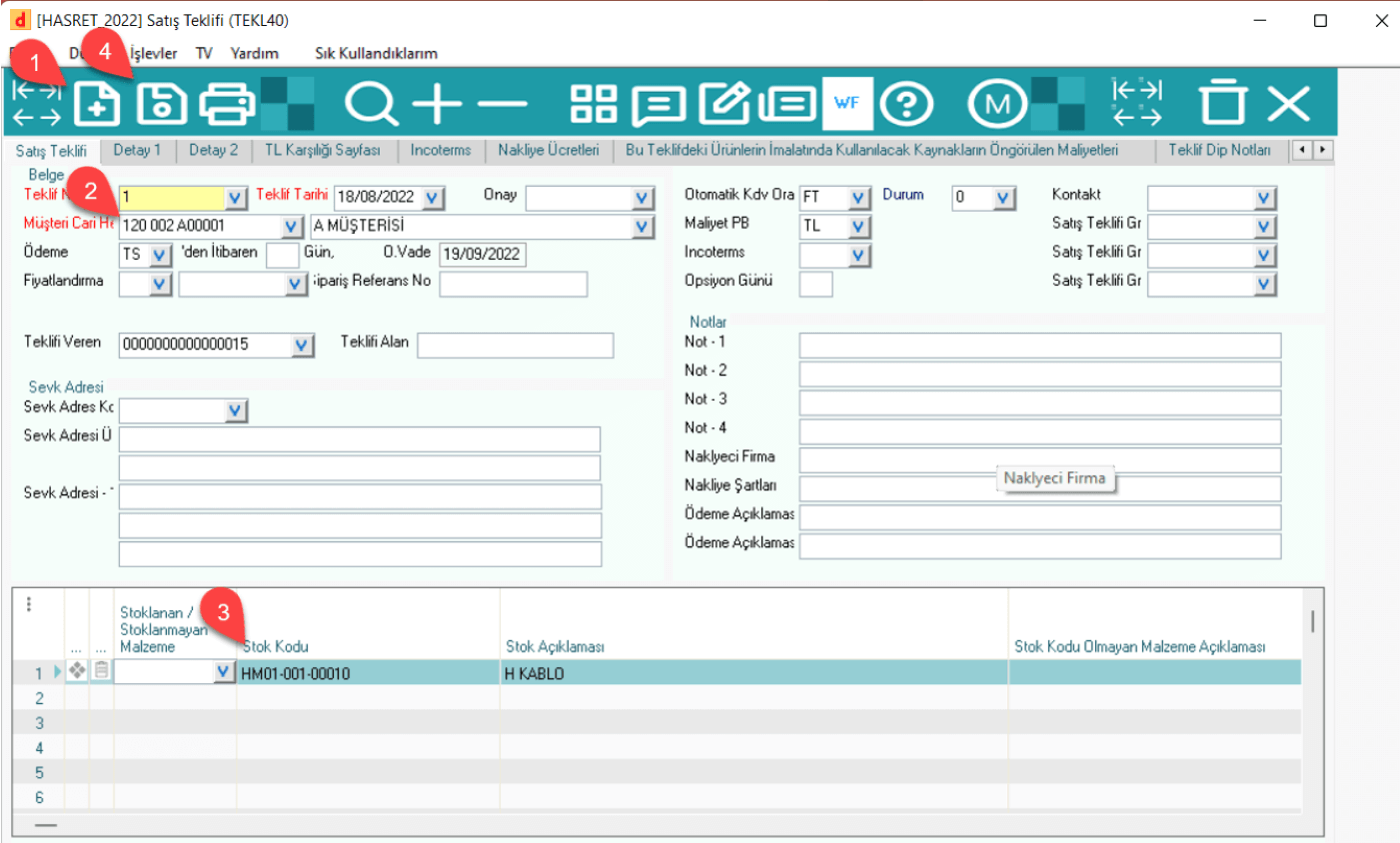
Sales Offer(TEKL40): An example of a created offer:
2.2 Sales Order(STOCK40)
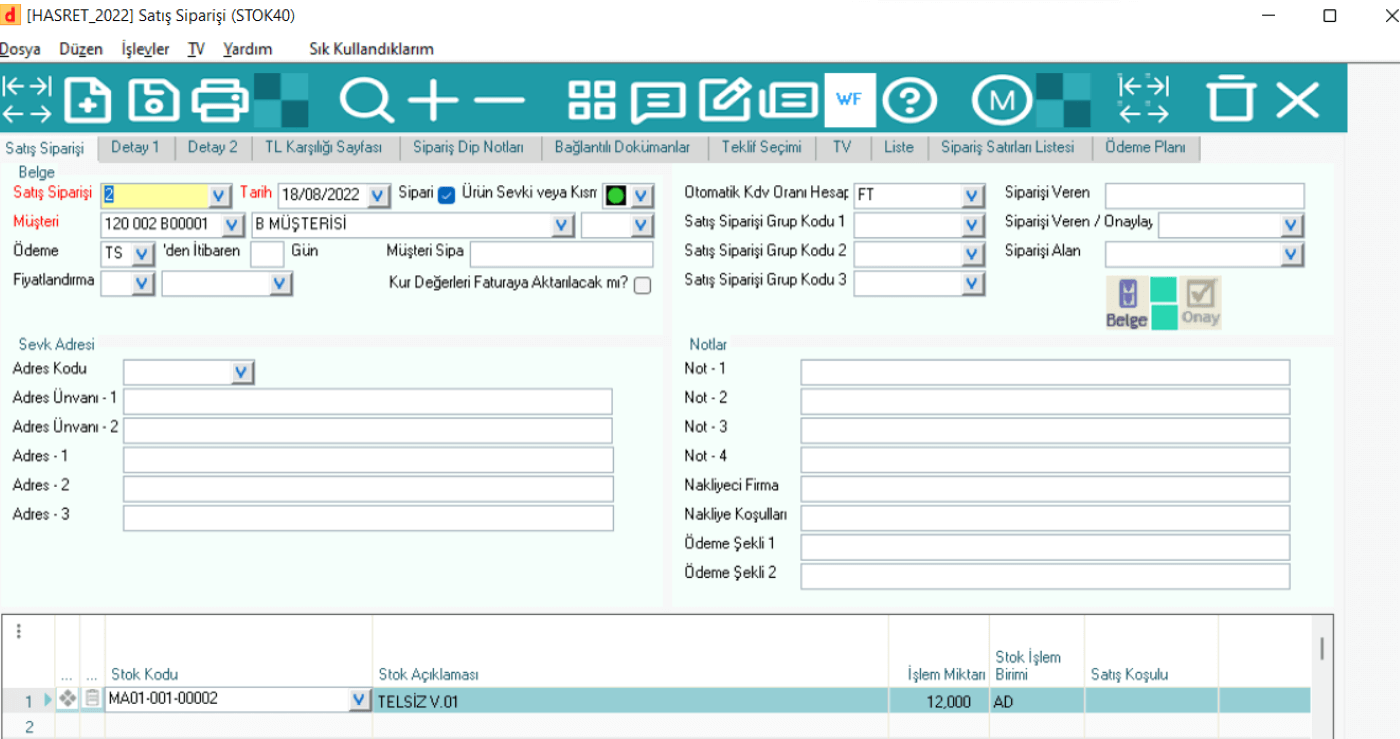
In Dinamo Erp, a sales order is created via the STOK40 application.
Stages of creating a sales order:
· Under the Sales module, Sales Order/Forecasts and then Sales Order are selected.
· A new document is created with the new button.
· The order can be withdrawn from the previous offer document or by selecting a new current stock code, etc. information can be filled in and created.
· The order is saved.
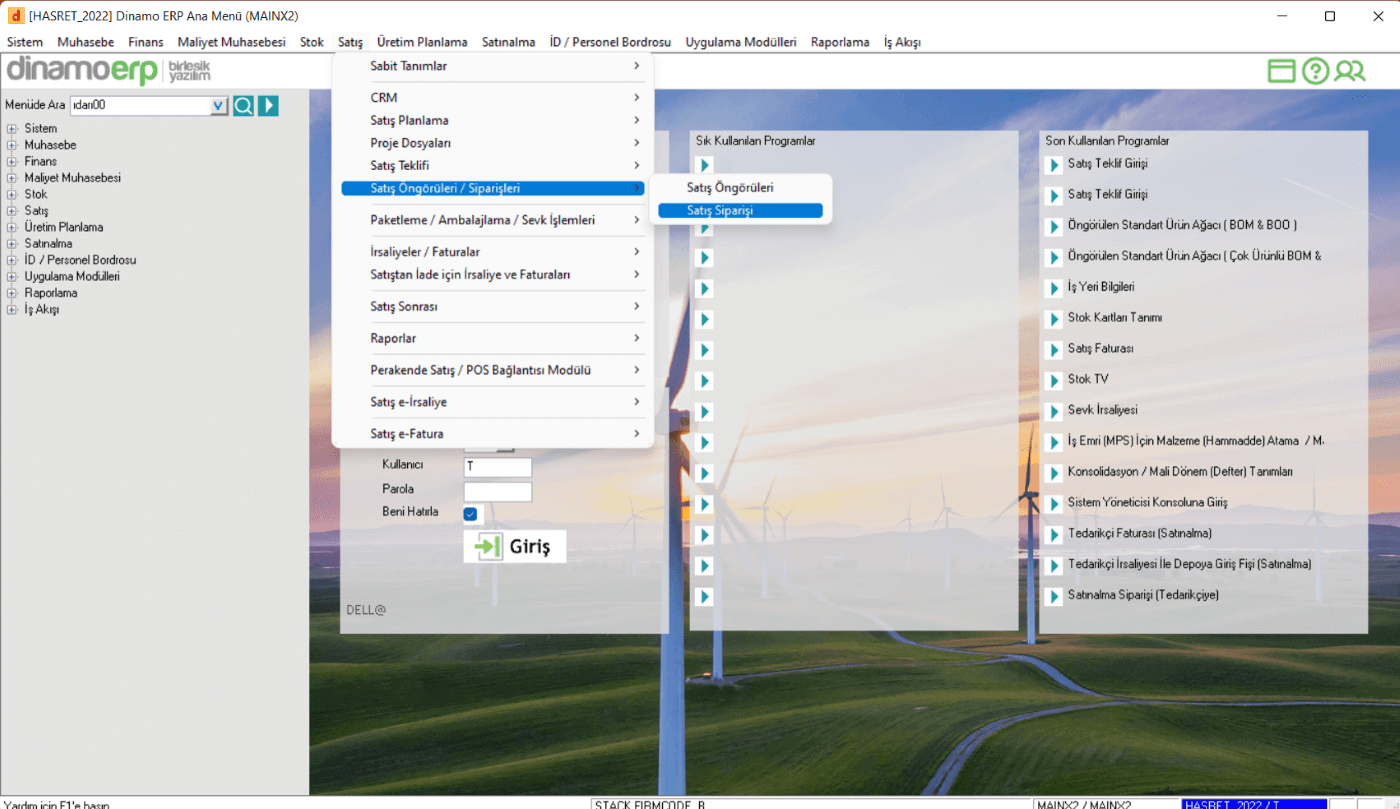
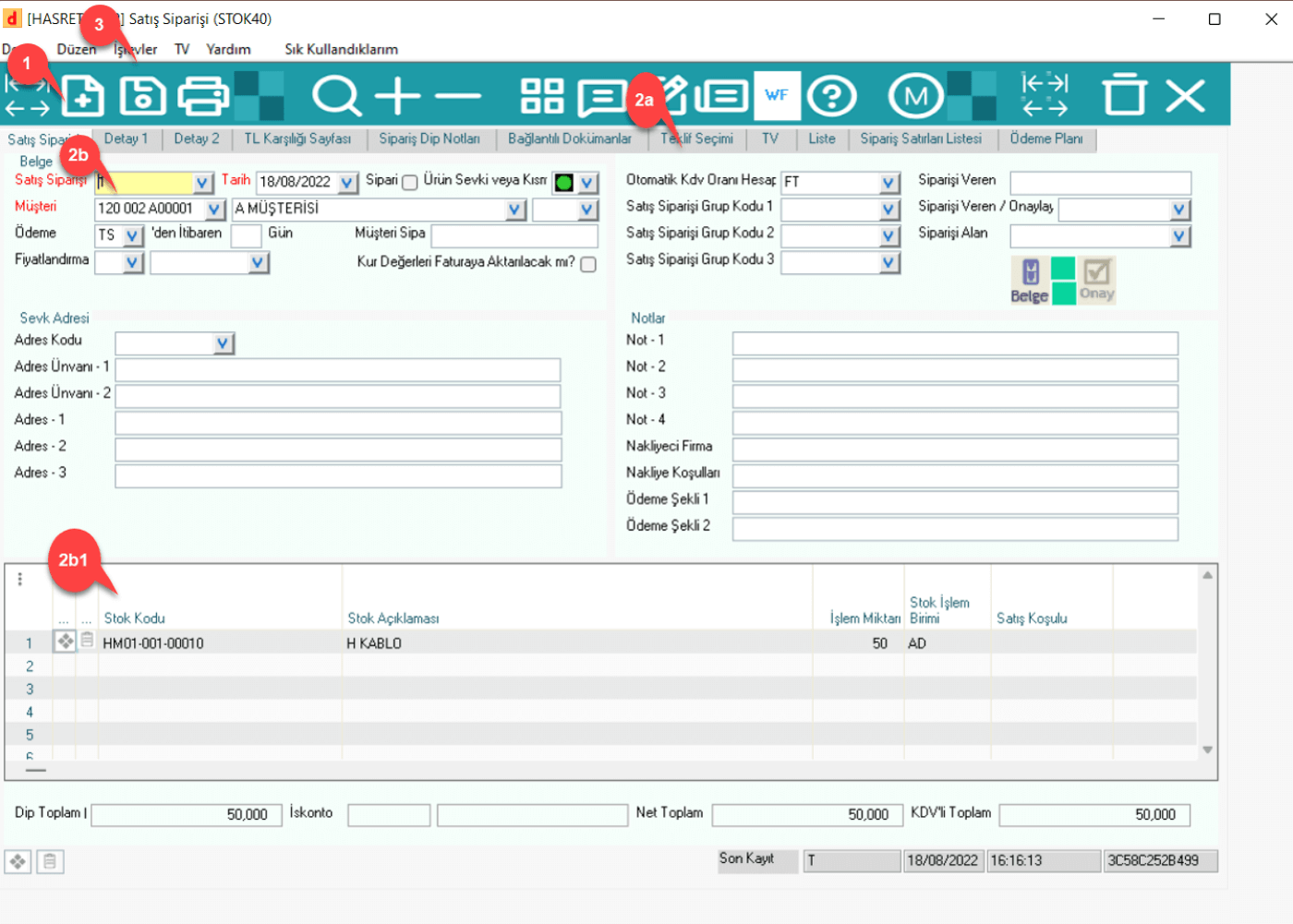
Sales Order (STOCK40): An example of a sales order for manufactured goods(finished goods).
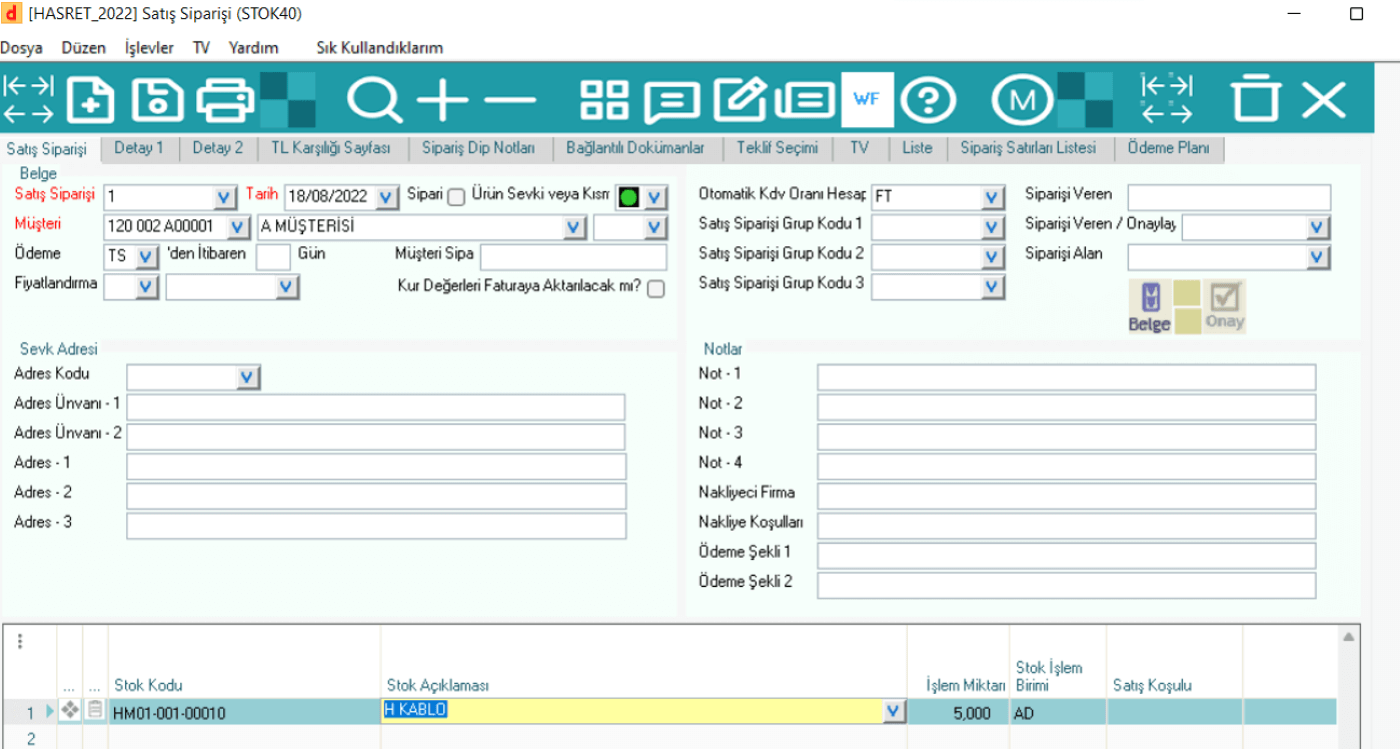
Sales Order (STOCK40): Example of a commercial goods sales order
3. THE PURCHASING PROCESS
The purchase stages start with a simple request similar to the sales processes, continue with the offer and order steps, and end with the delivery note and invoice entry.
3.1 Purchase Request(STOCK47)
In Dinamo Erp, the purchase request is created through the STOK47 application.
Stages of creating a purchase request:
· The Internal Purchase Request option is selected under the purchase module.
· A new document is created with the new button.
· The requesting department and the requesting personnel are selected.
· Stock code, quantity, price, dates, etc. in the columns for the requested stock item. mandatory information is filled in.
· The request is registered.
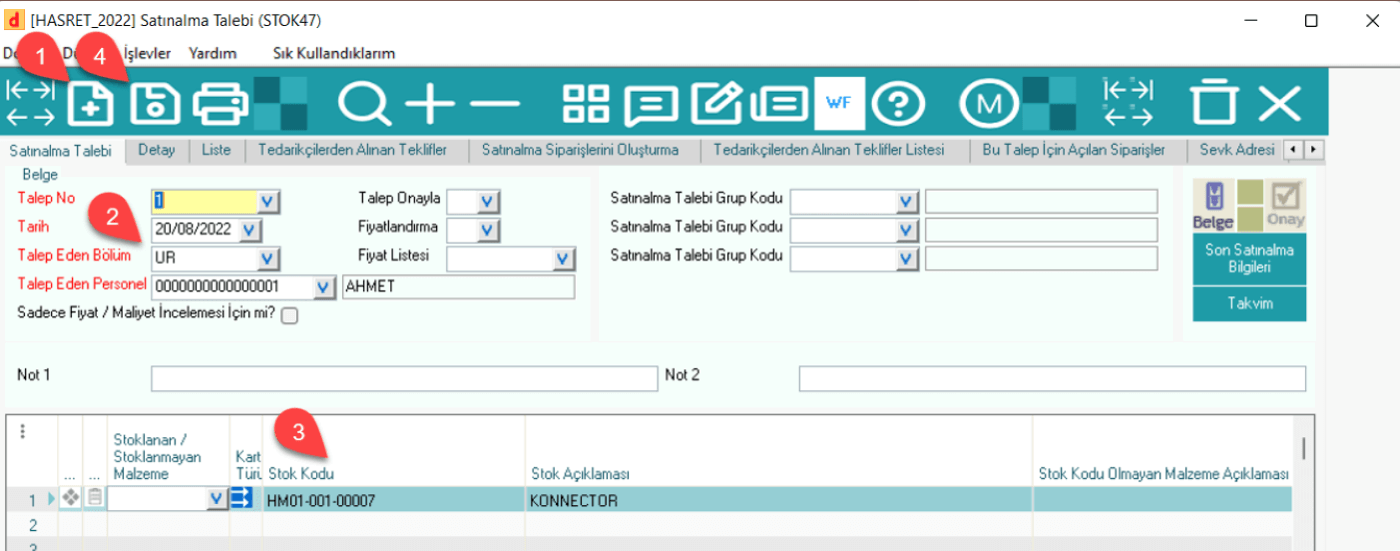
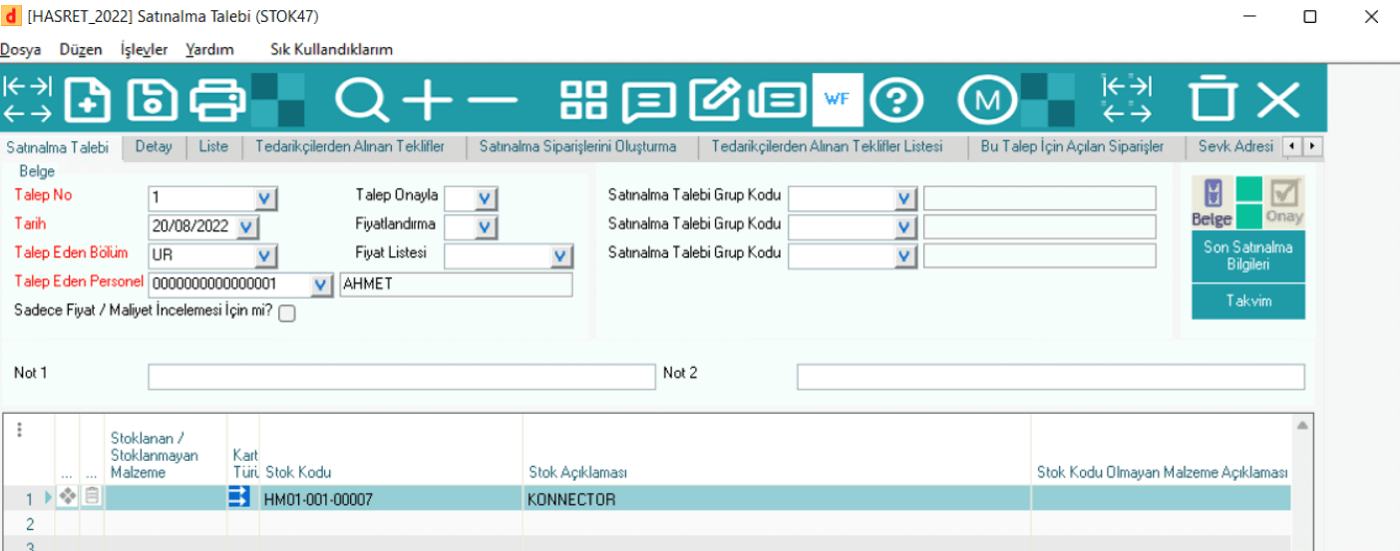
Purchase Request(STOCK47): Example of a created purchase request
3.2 Offer to Purchase(STOCK45)
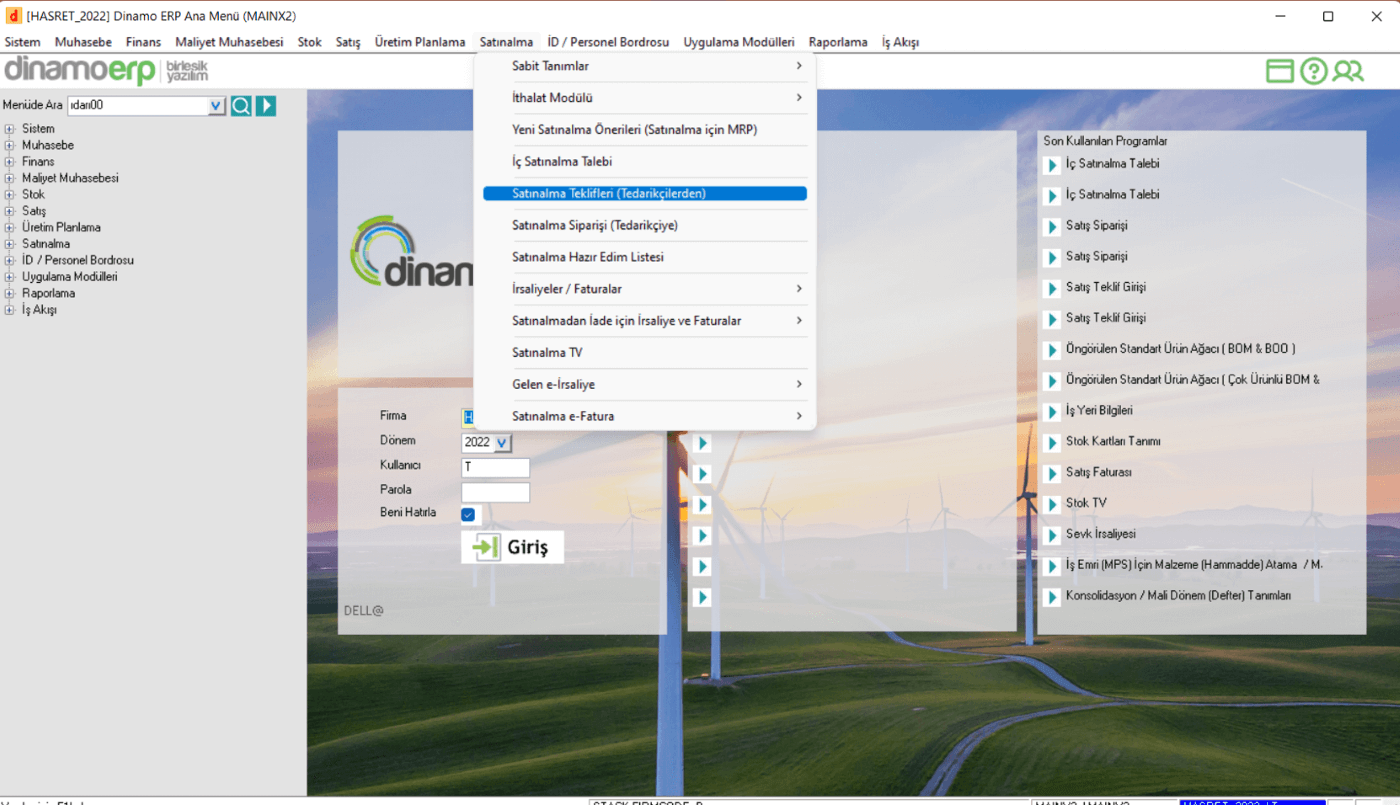
In Dinamo Erp, the purchase offer is created through the STOK45 application.
Stages of creating a purchase offer:
· The Purchase Offers(from the Supplier) option is selected under the purchase module.
· A new document is created with the new button.
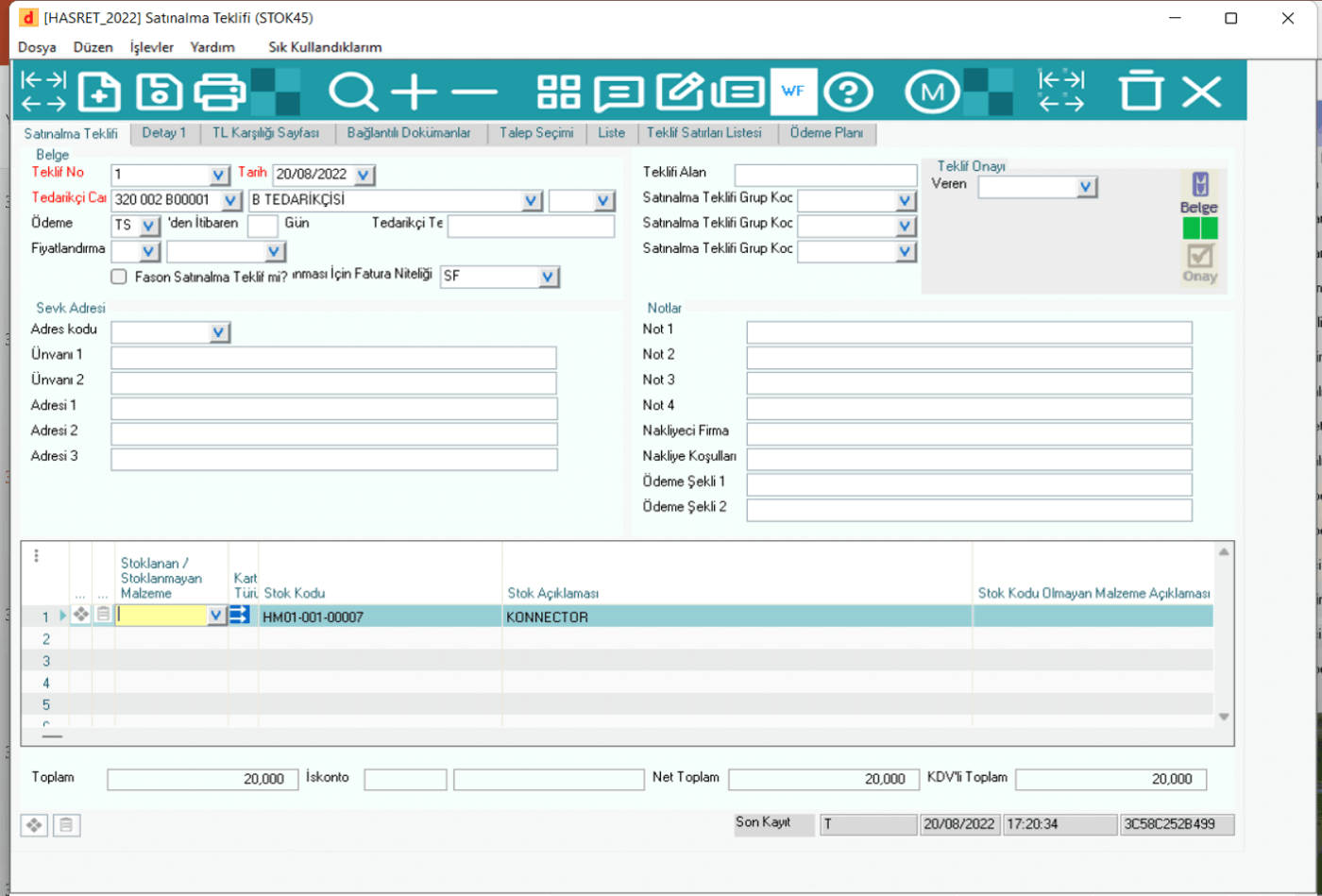
· The offer can be selected from the requests or an independent offer can be prepared by entering the supplier's current account, entering the inventory card, quantity, prices and date information.
· The offer is saved.
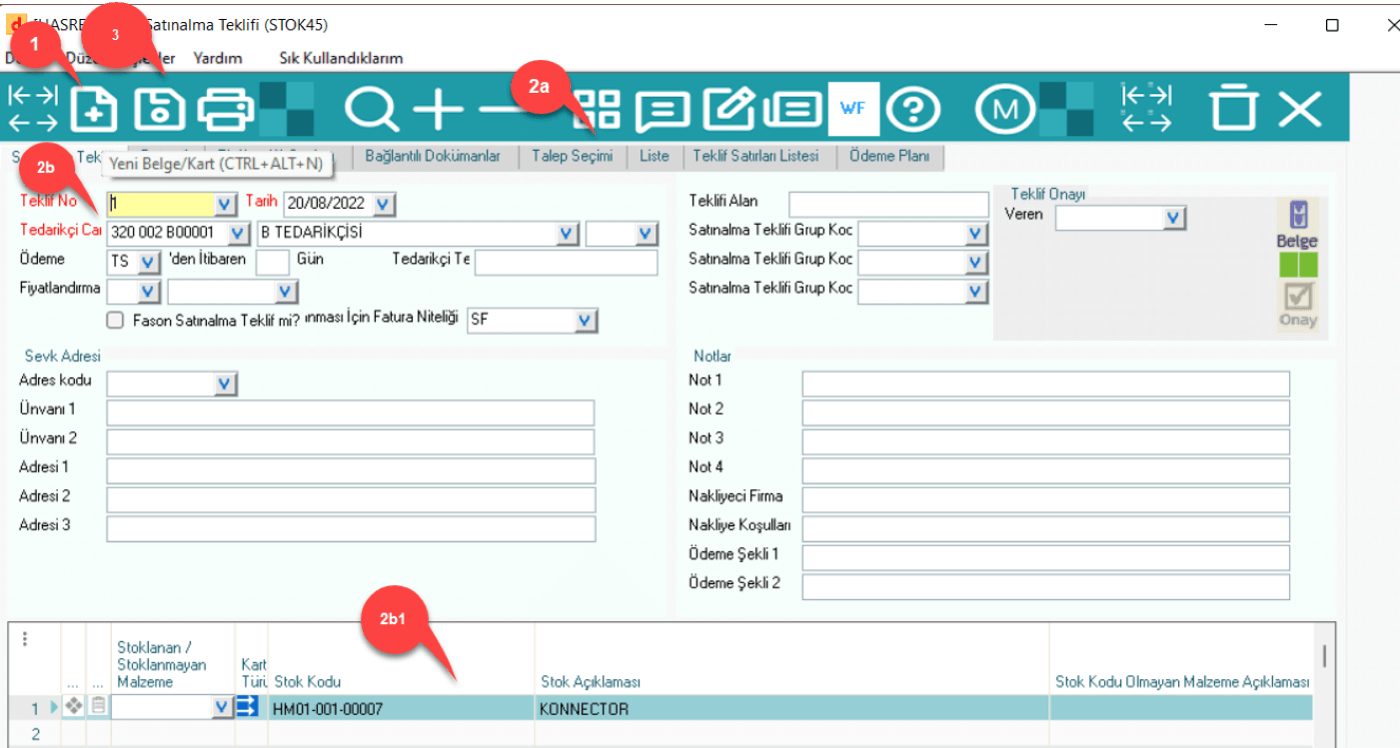
Purchase Offer(STOCK45): An example of an offer created by withdrawing from requests.
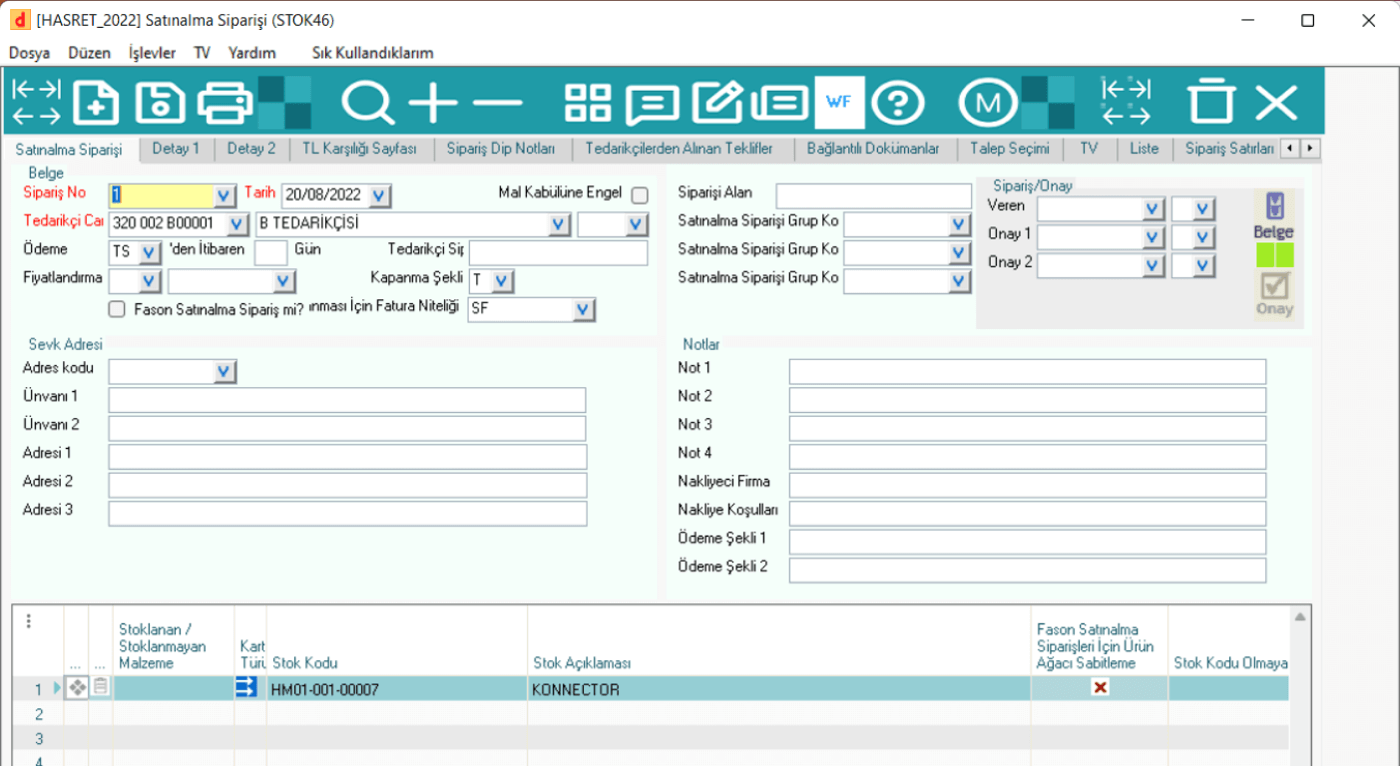
3.3 Purchase Order(STOCK46)
In Dinamo Erp, the purchase order is created through the STOK46 application.
Stages of creating a purchase order:
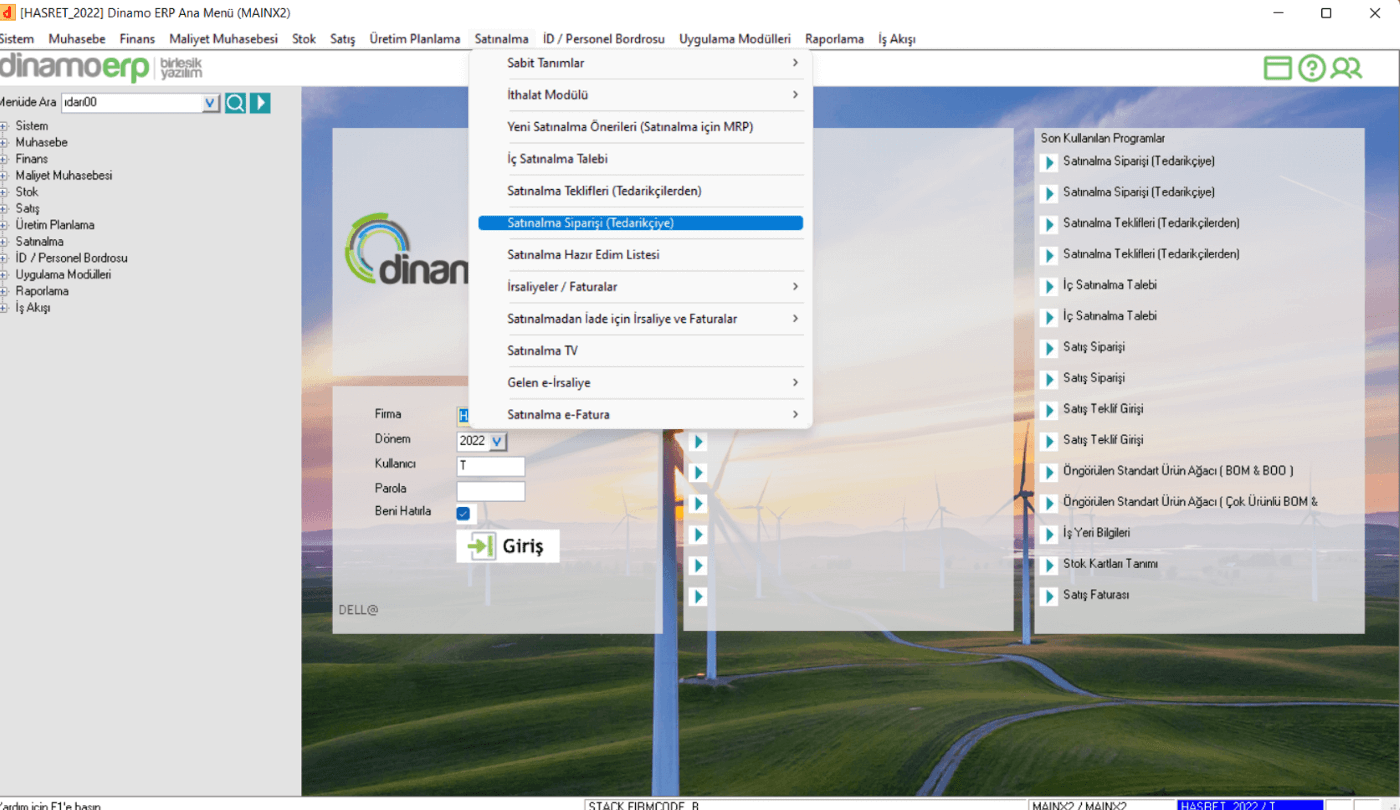
· The Purchase Order(to the Supplier) option is selected under the purchase module.
· A new document is created with the new button.
· The order can be withdrawn from the previous request document or by selecting a new current stock code, etc. information can be filled in and created.
· The order is saved.
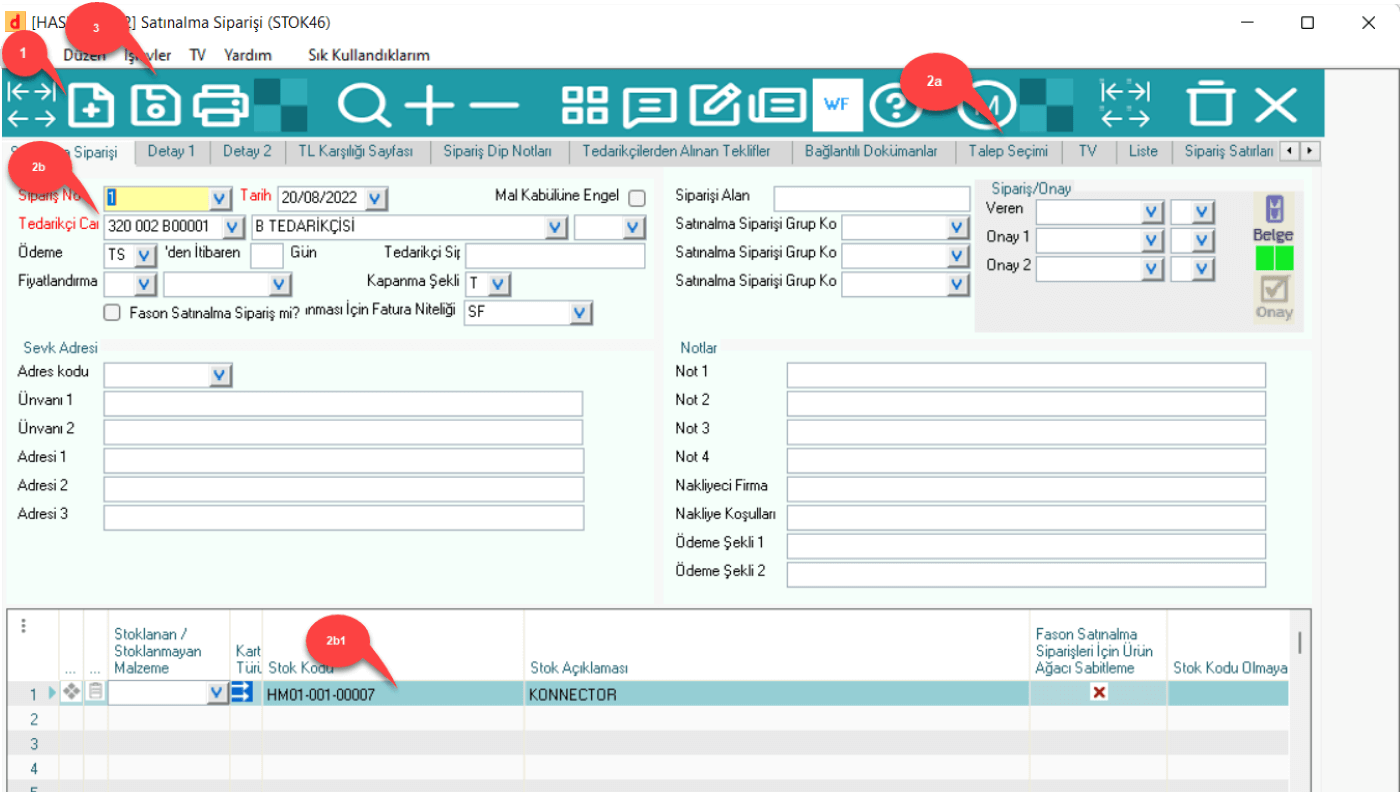
Purchase Order(STOCK46): An example of a purchase order created by withdrawing from the request.
3.4 Purchase Consignment Note (STOCK29)
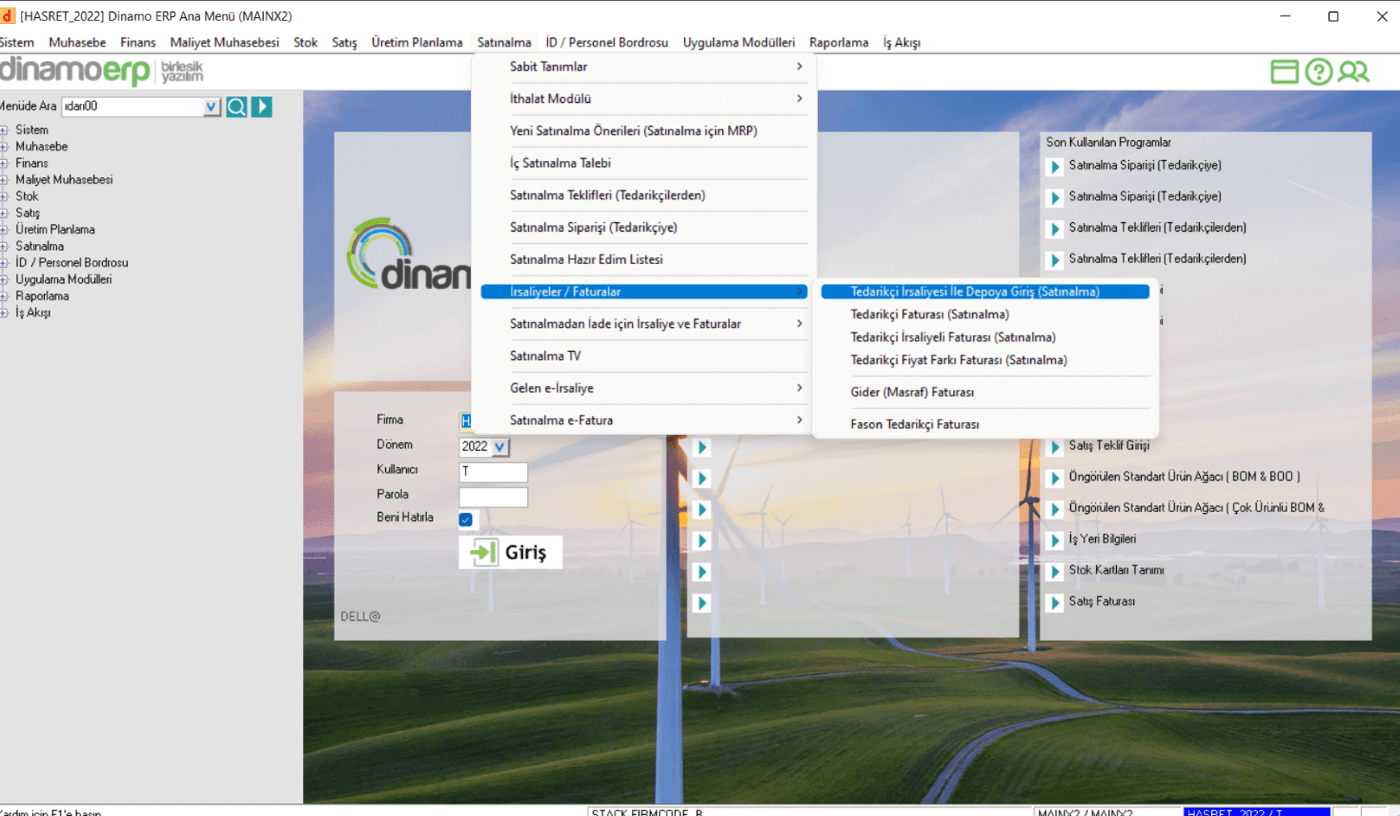
In Dinamo Erp, the inventory entry is created via the STOK29 application.
Stages of creating a purchase receipt:
· Under the purchase module, Waybills/Invoices are selected, and then the option to Enter the Warehouse with the Supplier's Waybill(Purchase) is selected.
· A new document is created with the new button.
· Stock items can be withdrawn from the previous order document or by selecting a new current stock code, etc. information can be filled in and created.
· The warehouse where the material will be stored is selected
· The delivery note is saved.
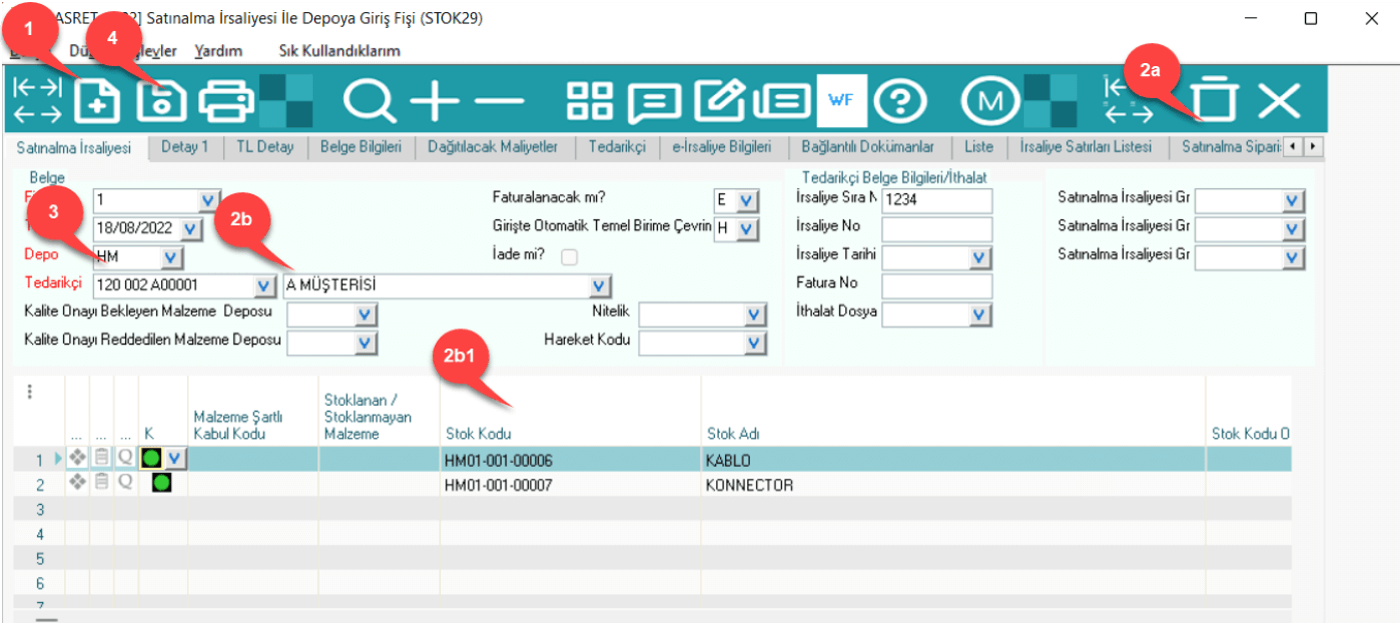
Entrance to the Warehouse with the Purchase Consignment Note(STOK29): A consignment note created by withdrawing the inventory item from the order.
3.5 Purchase Invoice (STOCK74)
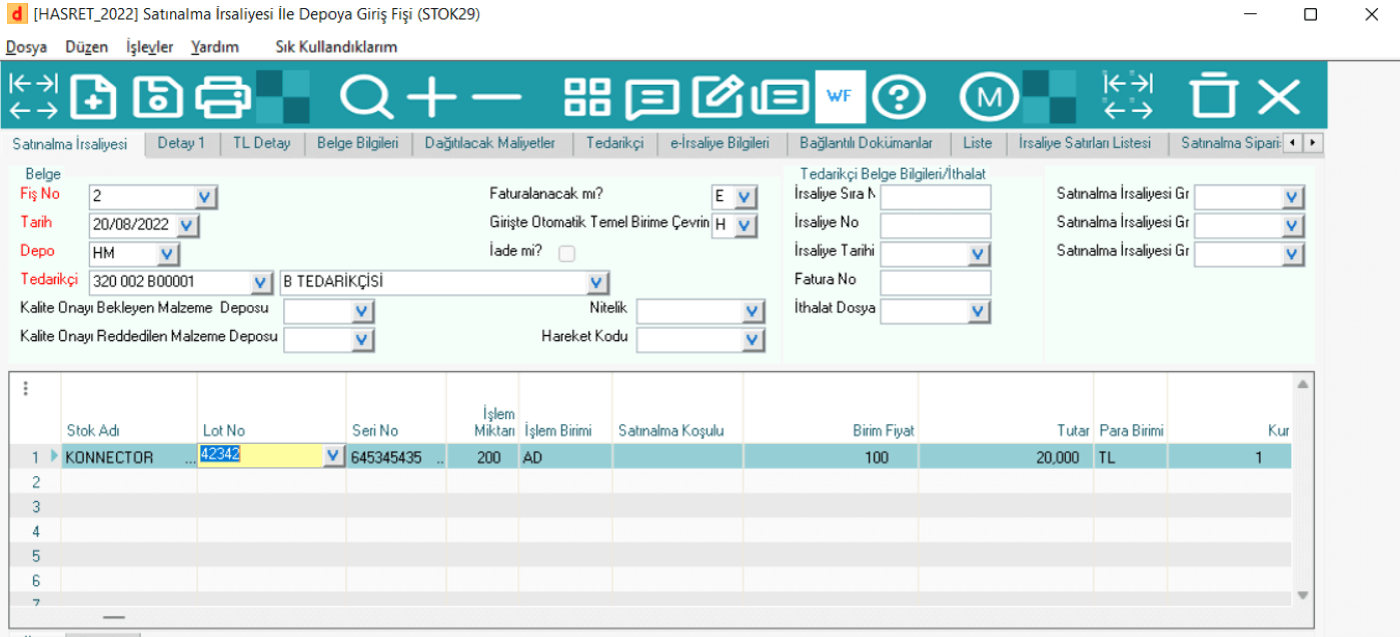
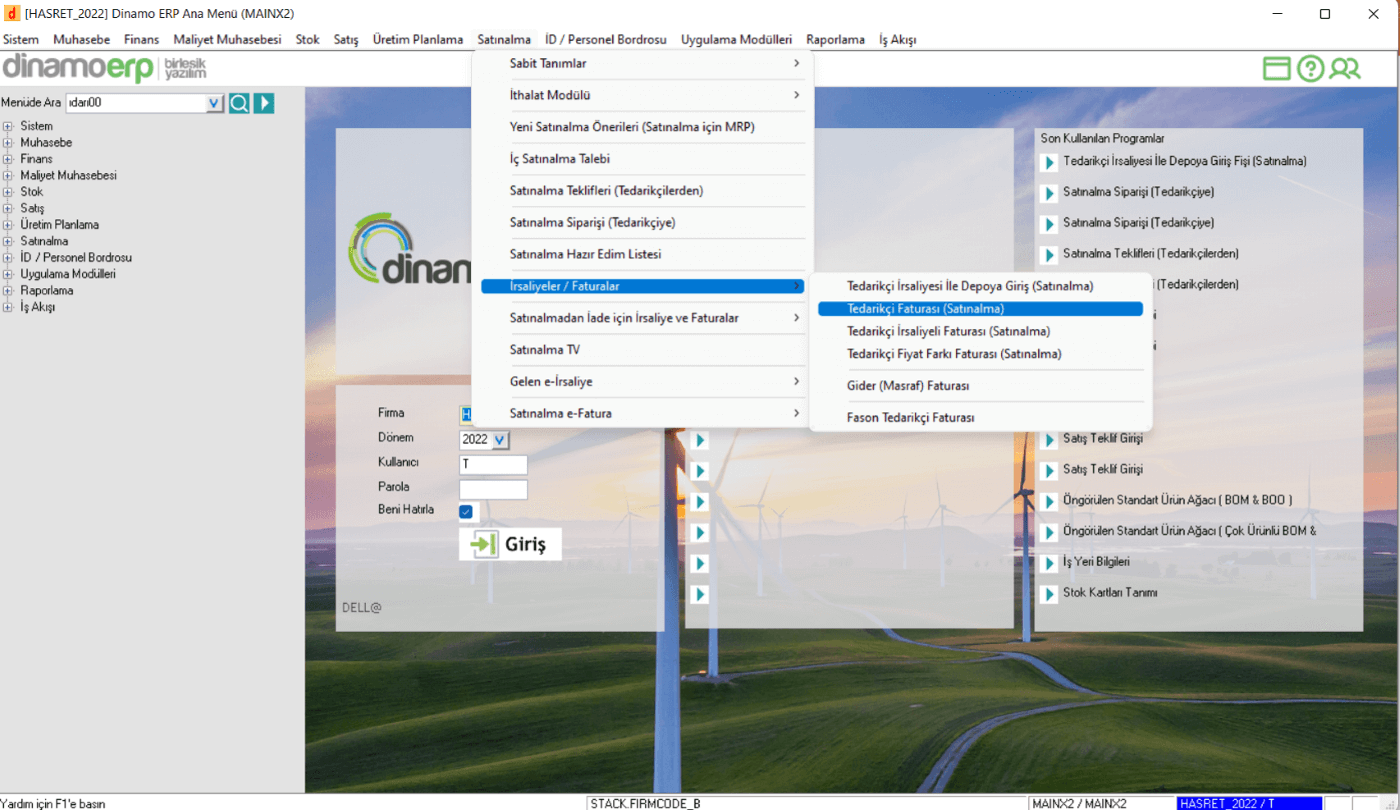
In Dinamo Erp, the purchase invoice is created through the STOK74 application.
Stages of creating a purchase invoice:
· Under the purchase module, Waybills/Invoices and then the Supplier Invoice(Purchase) option are selected.
· A new document is created with the new button.
· Inventory items can be withdrawn from the previous delivery document or by selecting a new current inventory code, etc. information can be filled in and created.
· The warehouse where the material will be stored is selected
· The invoice is saved.
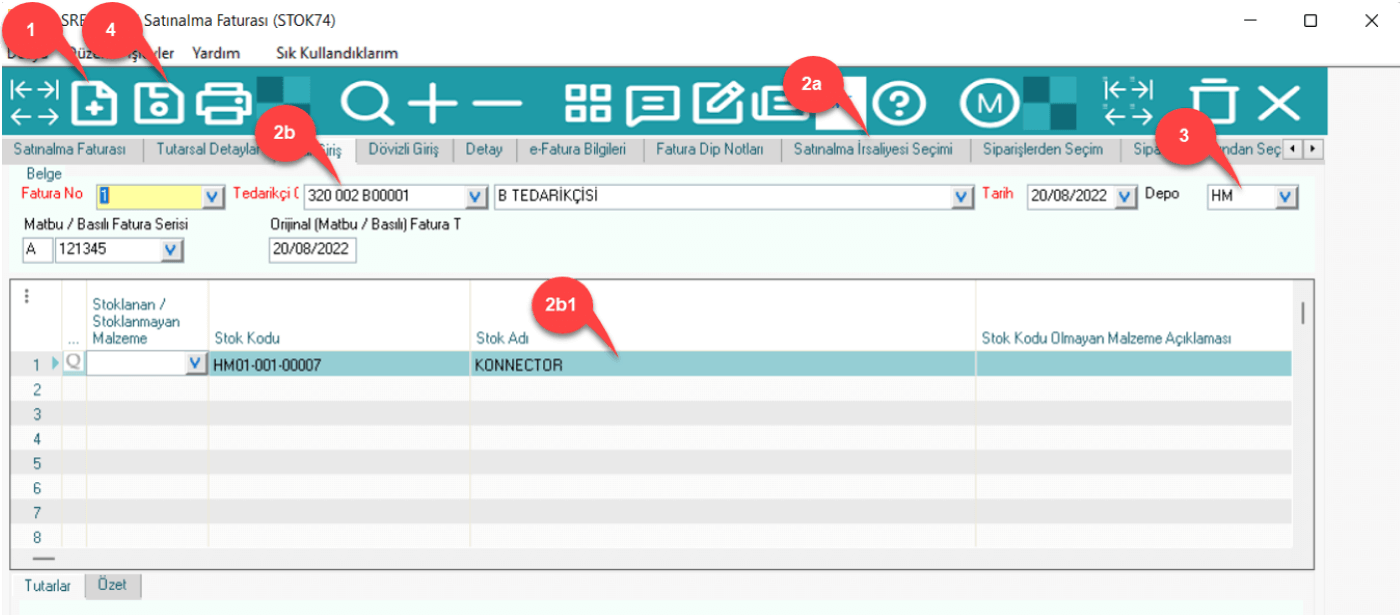
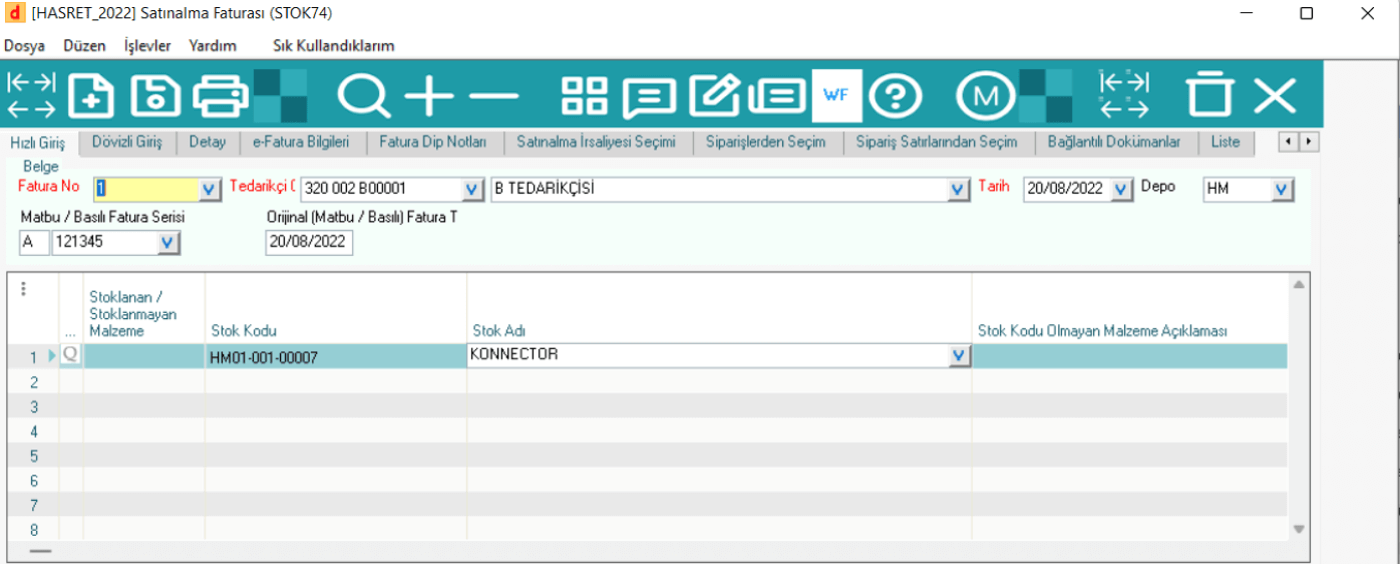
Purchase Invoice(STOK74): An example of an invoice created from the purchase consignment note.
4. PRODUCTION PROCESSES
The production processes of finished products are directly related to orders.
In the Dinamo Erp program, production processes can be started one-on-one production at the direct order stage.
With MRP calculations, the purchasing and production stages for the materials whose order is entered are reflected in a plan based on delivery dates and quantities, and the production process is tried to be managed with recommendations.
In our example, not with a work order from Mrp; in Dinamo Erp, a one-to-one production method will be used to order, where the production phases can be more easily understood.
At this point, the production phases are:
· Creating a Work Order from Product Trees to a Multi-Level Master Production Plan(Mps)(One-to-One Production): A work order is created.
· Work Order Material (Raw Material) Assignment (STOCK83): Raw material reservation is made for the created Mps.
· In-Workshop Time Tracking Receipt (SFDC20): For each operation included in the work order, this receipt is created based on the quantities produced as a result of each operation until the quantity included in the finished product order is completed. For example, if the quantity required in the order is 50 pieces, 10 pieces are produced in an operation, and this operation is closed at that time, the tracking receipt will only be cut off for these 10 pieces of material. Different plugs are cut for the remaining parts.
· Production Plug (Stock20): This is the application in which the parts produced at the end of the operation are entered into the stock by taking records from the time tracking plug.
4.1 Creating One-to-One Work Orders(STOCK40)
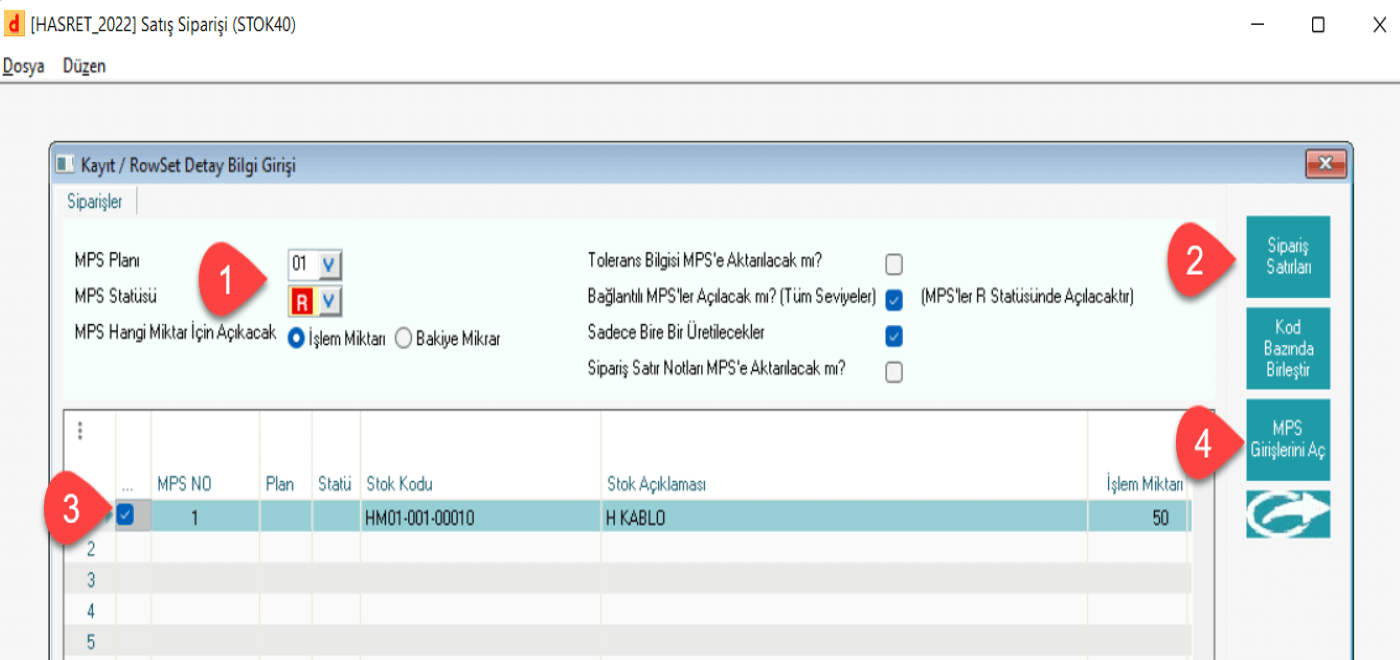
Creating Work Orders from Product Trees to a Multi-Level Master Production Plan(Mps)(One-to-One Production):
· Sales order this option is selected from the functions tab.
· On the next screen, the Mps Plan and Status are selected respectively.
· The Order Lines button is clicked.
· The order planned for production is selected.
· Work orders are created for this order by clicking on the Open Mps Entries button
One-to-One Production to Order(STOK40): It is used to make direct work order entry to Mps for an order.
Thus, the production processes can be started for this order.
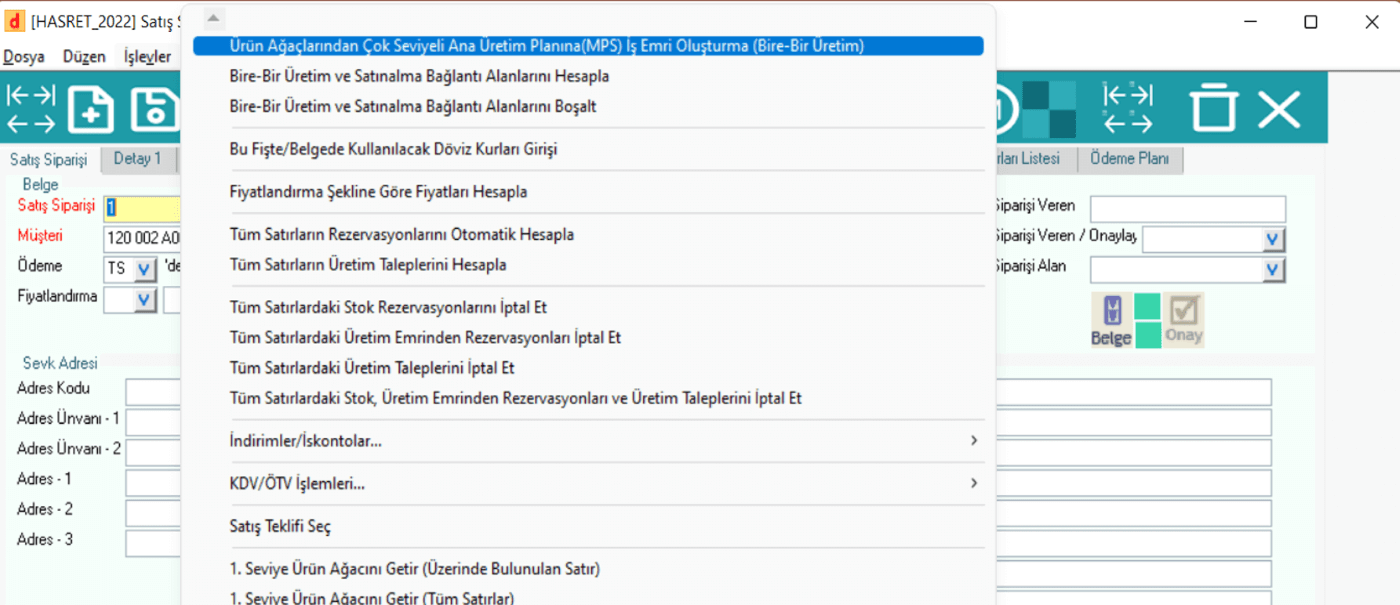
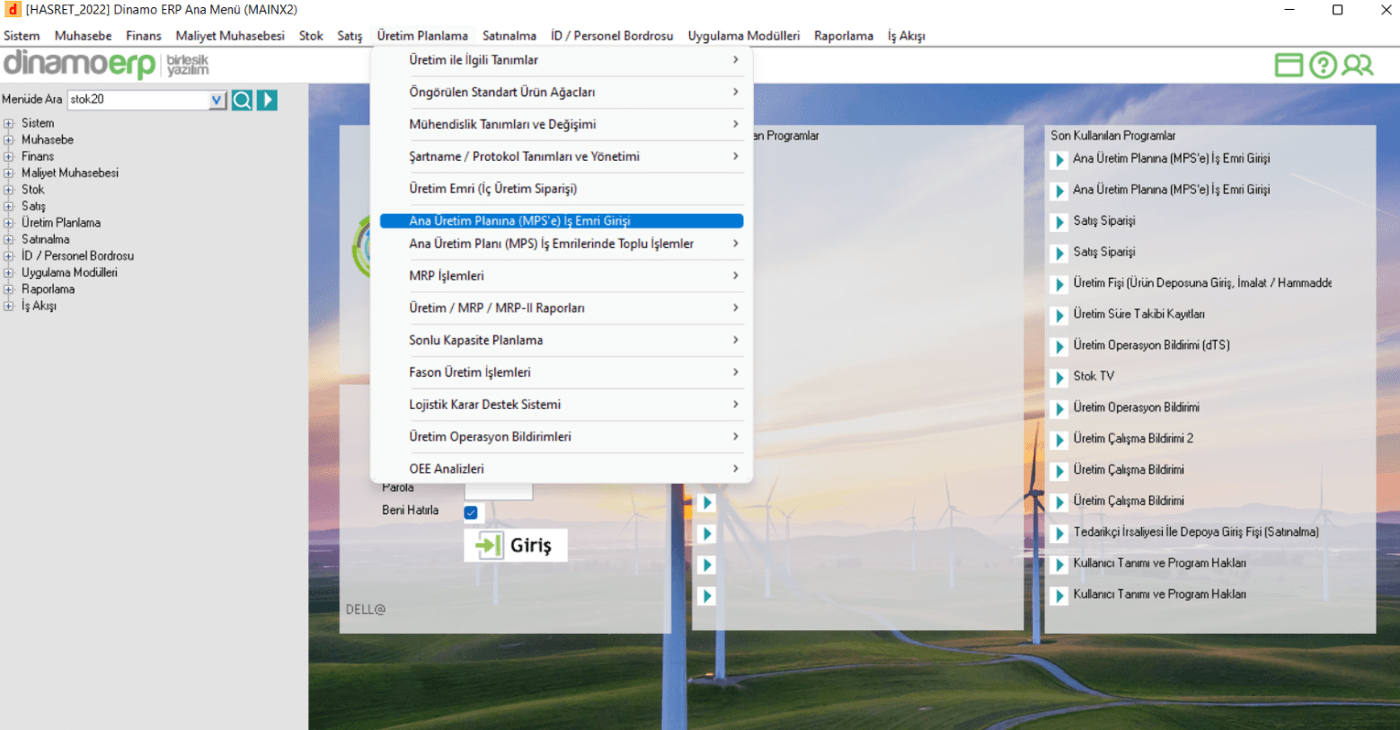
From the Decoupled interface, a work order is created for the Mps by following the arrows respectively.
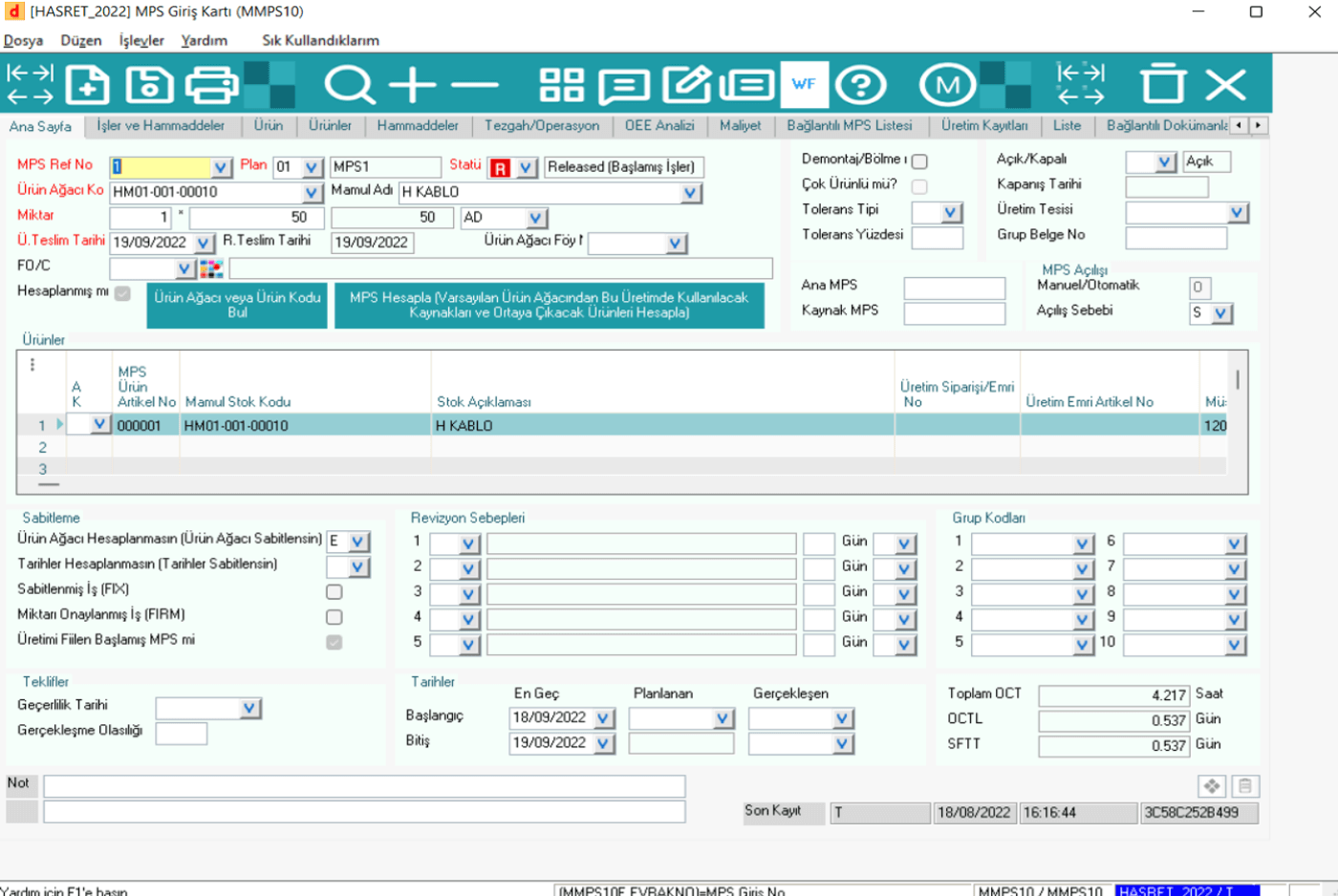
Mps Login Card(MMPS10): The created work order can be seen when it is opened.
All the data about the Mps created here can be examined.
4.2 Assignment of Work Order Material (Raw Material) (STOCK83)
It is necessary to make a reservation of the raw materials of the finished products included in the work order created for the order planned to be produced.
Thus, raw materials will be consumed within the plan during production.
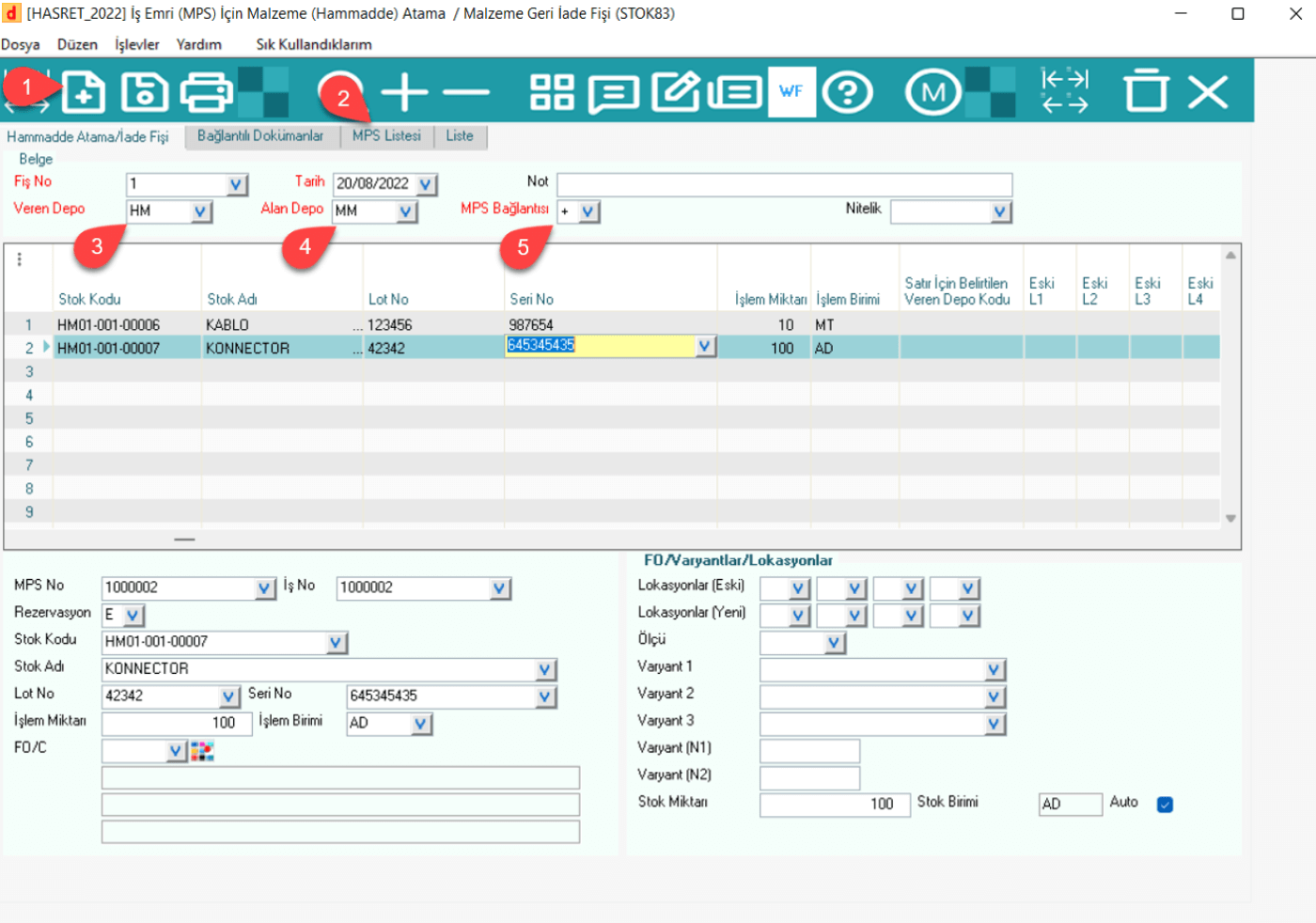
The phases in this module are:
· After logging in to the STOK83 application, a new document is created.
· The work order in question is withdrawn from the mps list.
· Export and receiving warehouses are selected on the basis of raw materials.
· Mps connection + is selected as the material transfer for Mps.
· The document is saved.
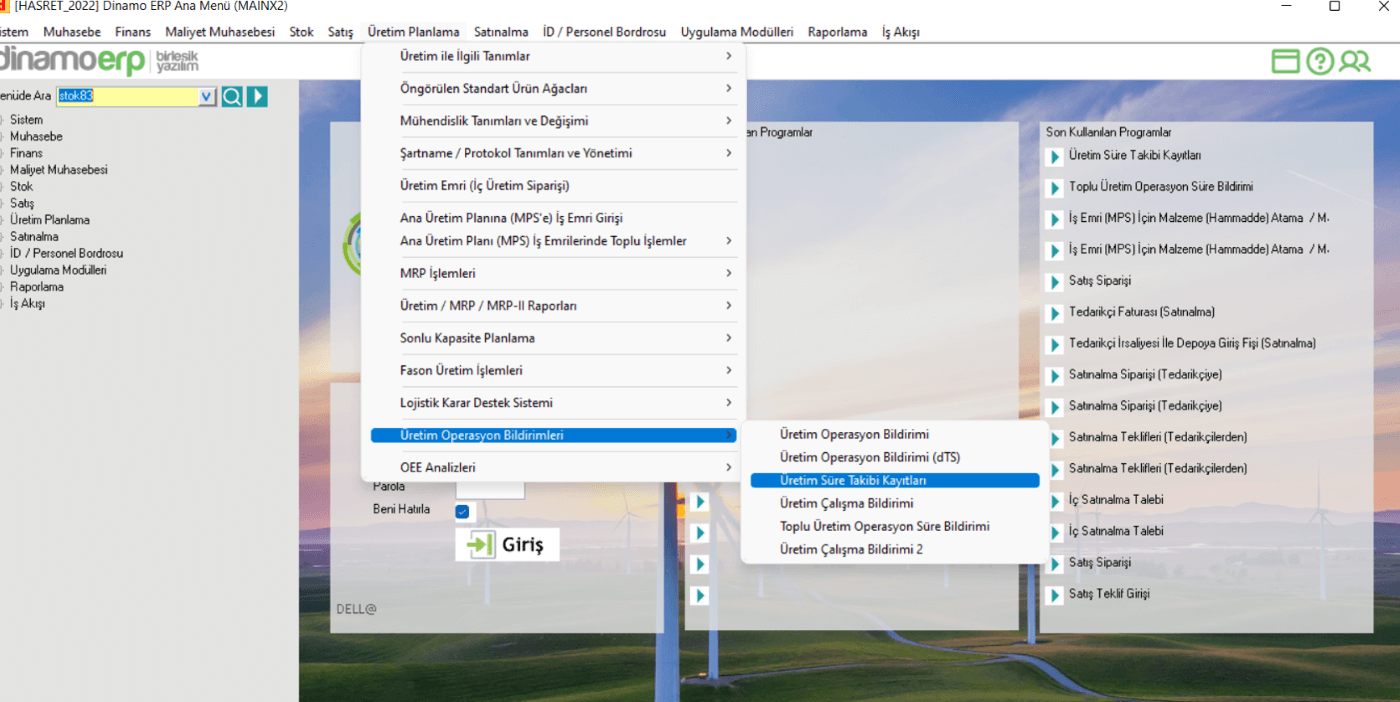
4.3 In-Workshop Time Tracking Plug (SFDC20)
It is an application in which a record of the amount of material produced and the time spent during the execution of an operation included in the Work Order is kept.
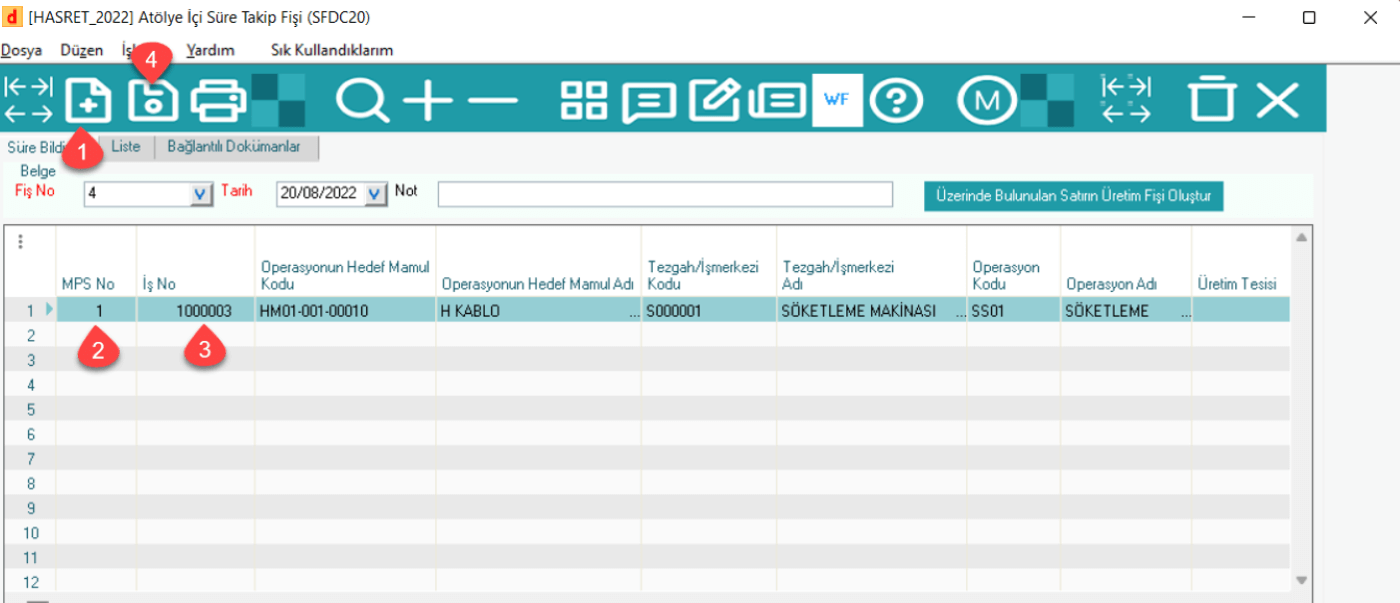
In this application, the start and finish times for each operation, the completed amounts and operator information must be entered, and a tracking receipt is generated for a period of time as a result of registration.
The stages of the process are as follows,
· Production Operation Notifications and then Production Time Tracking Records options are selected in the Production Planning module.
· A new document is created
· Enter the Mps No from the rows.
· Job No is selected from the rows. Completed amounts, durations, operators, etc. mandatory fields are entered.
· The document is saved.
4.4 Production Plug (STOCK20)
It is necessary to perform stock entry operations and make raw material deductions for materials in quantities that are recorded and completed during production. The STOK20 application is an application designed for this purpose.
Introduction of the produced material to the stock raw material consumption stages:
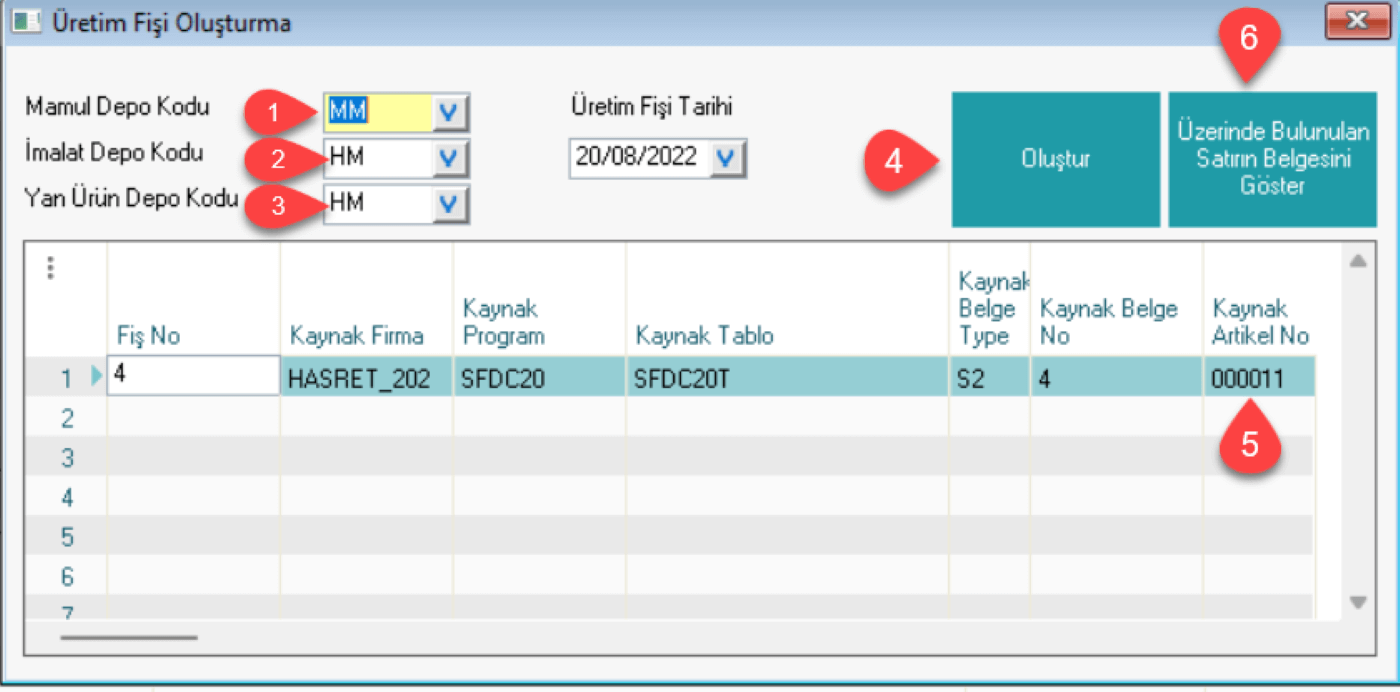
· Create the Production Receipt of the Current Line by clicking the Create Production Receipt button to create a production receipt for the receipt that is kept in the SFDC20 application. A production receipt is created on STOK20.
· Stores should be selected first from the screen that opens at this stage, then the corresponding row should be selected and the Create button should be pressed. A production receipt is created, and to view this receipt, go to the production receipt in the STOK20 application with the help of the Show Document button of the Current Line.
· Raw materials are calculated by the Calculate Raw Materials from Product Trees option on the production receipt primarily for raw material consumption from the Functions tab.
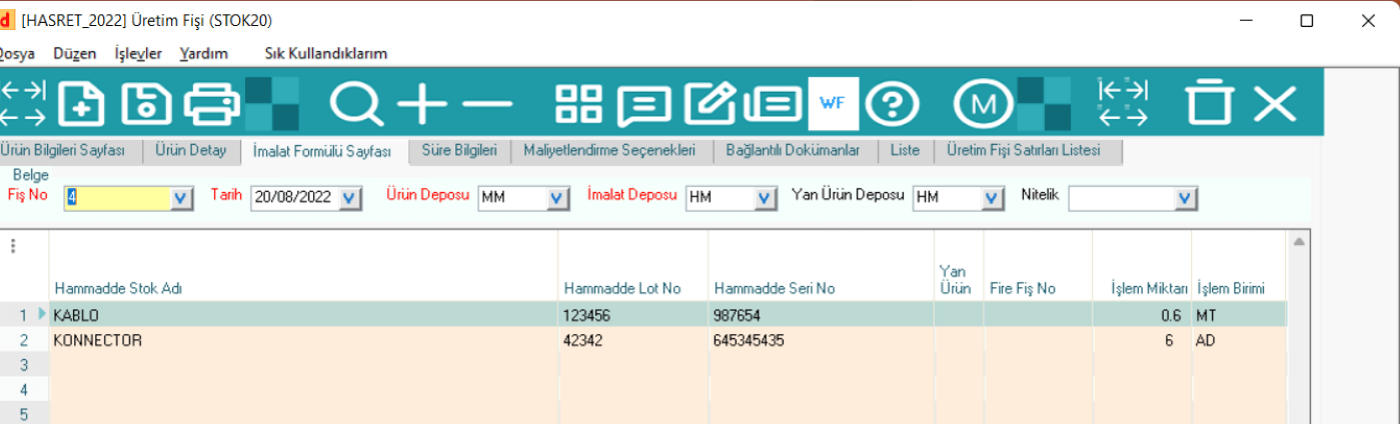
· The calculated raw materials can be examined on the Manufacturing Formulas tab. The necessary corrections are made in the lines here.
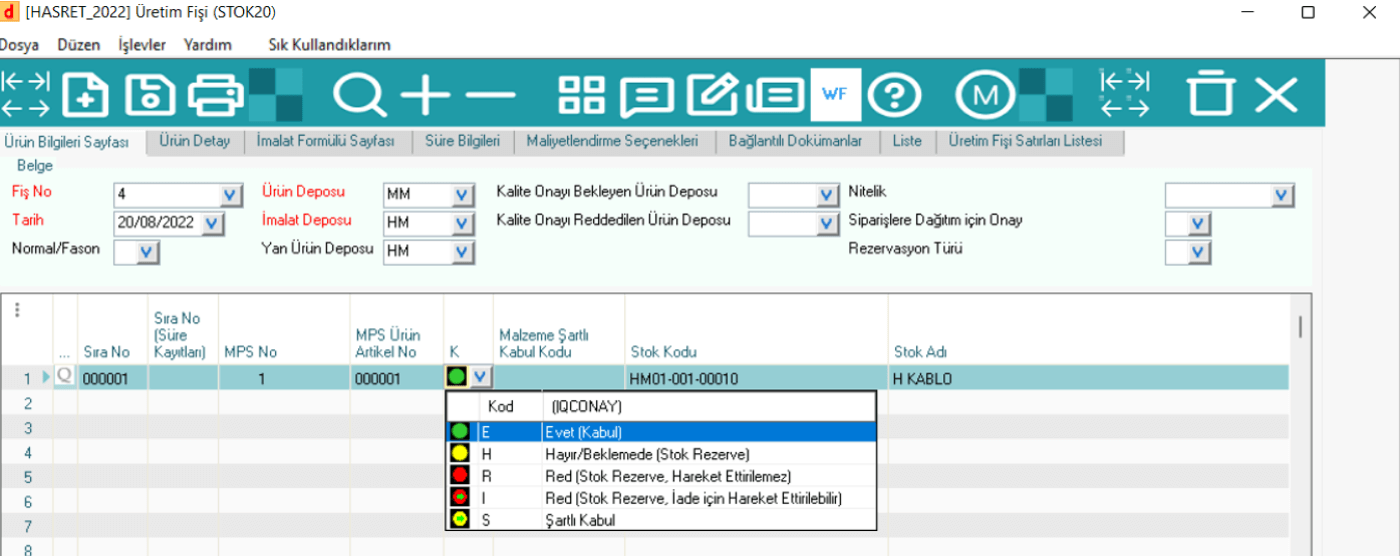
· With the K approval code located in the columns on the Product Information tab, the entry of the product into the stocks in an available state is approved.
· The document is saved and the production is completed.
A Production Receipt should be created indicating that the parts whose duration is reported have been completed. For this, the button marked on the SFDC20 screen can be used.
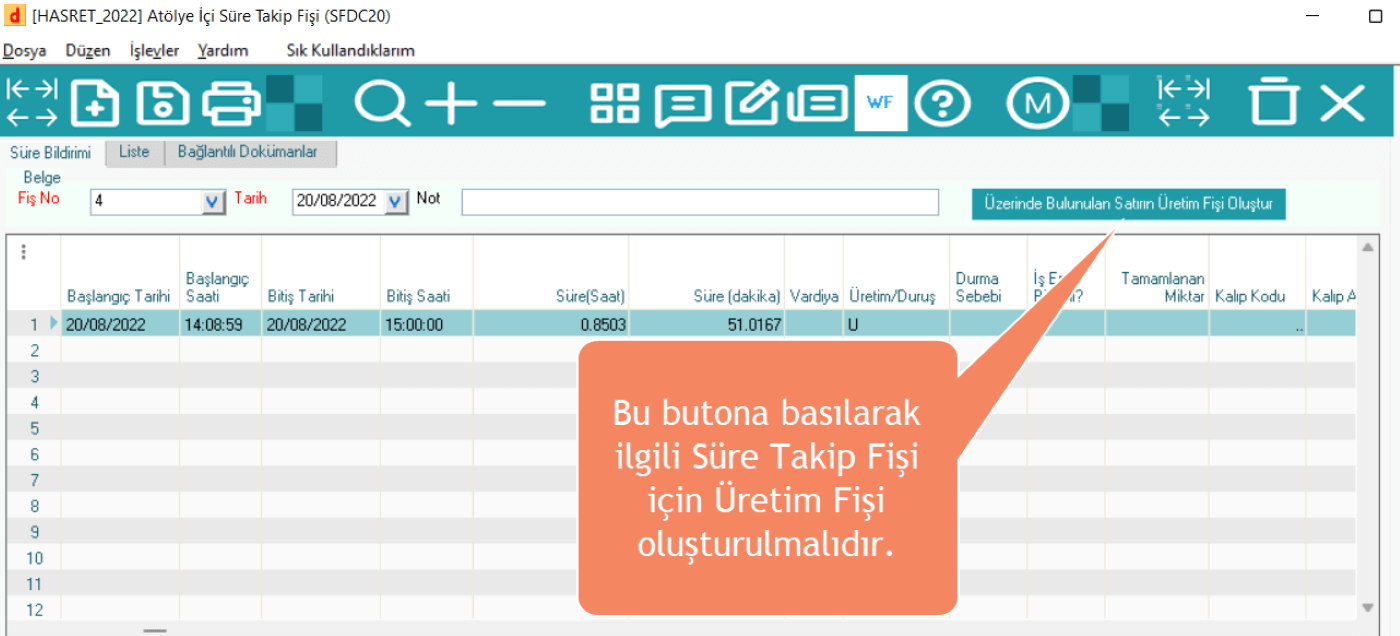
From the opened template, the production receipt is created by following the arrows respectively, and the transfer to the Production Receipt(Stok20) application takes place.
In order to make a raw material deduction in this application, the appropriate one should be selected from the raw material calculation options in the functions menu.
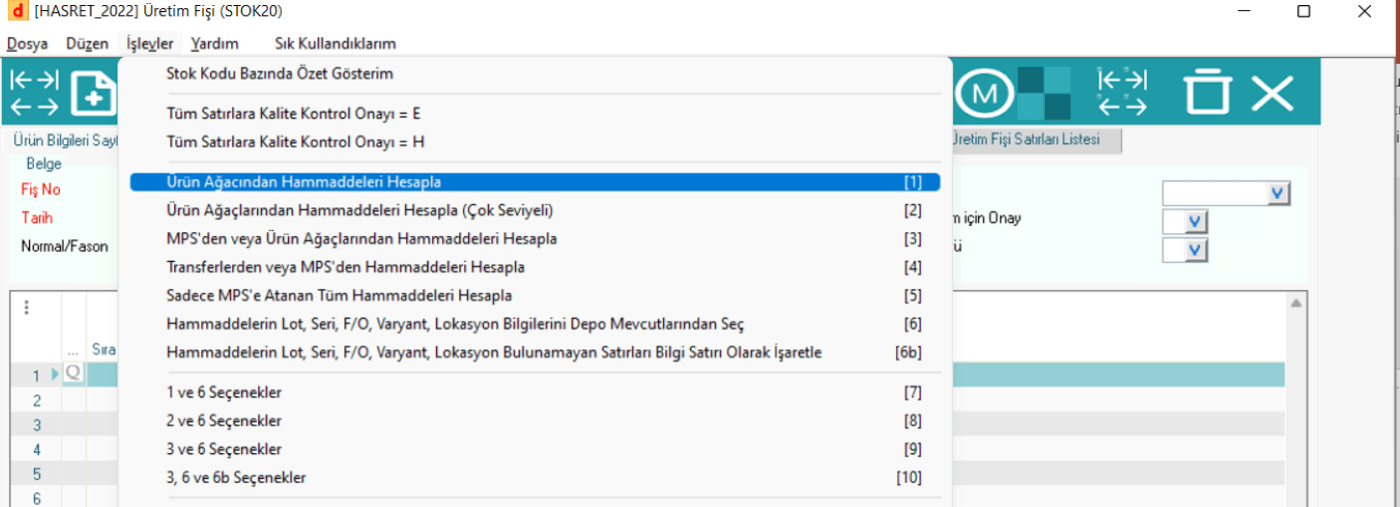
After the raw materials are calculated, quality approval is also given. Then the production plug is cut off. The material produced will enter the stocks.
5. SHIPMENT PROCESS
The shipment processes are basically completed by cutting the sales invoice for the sales receipt and closing the shipment receipt. This process is the stage at which the actual tracking of the product is completed in ERP.
5.1 Shipment (STOCK60)
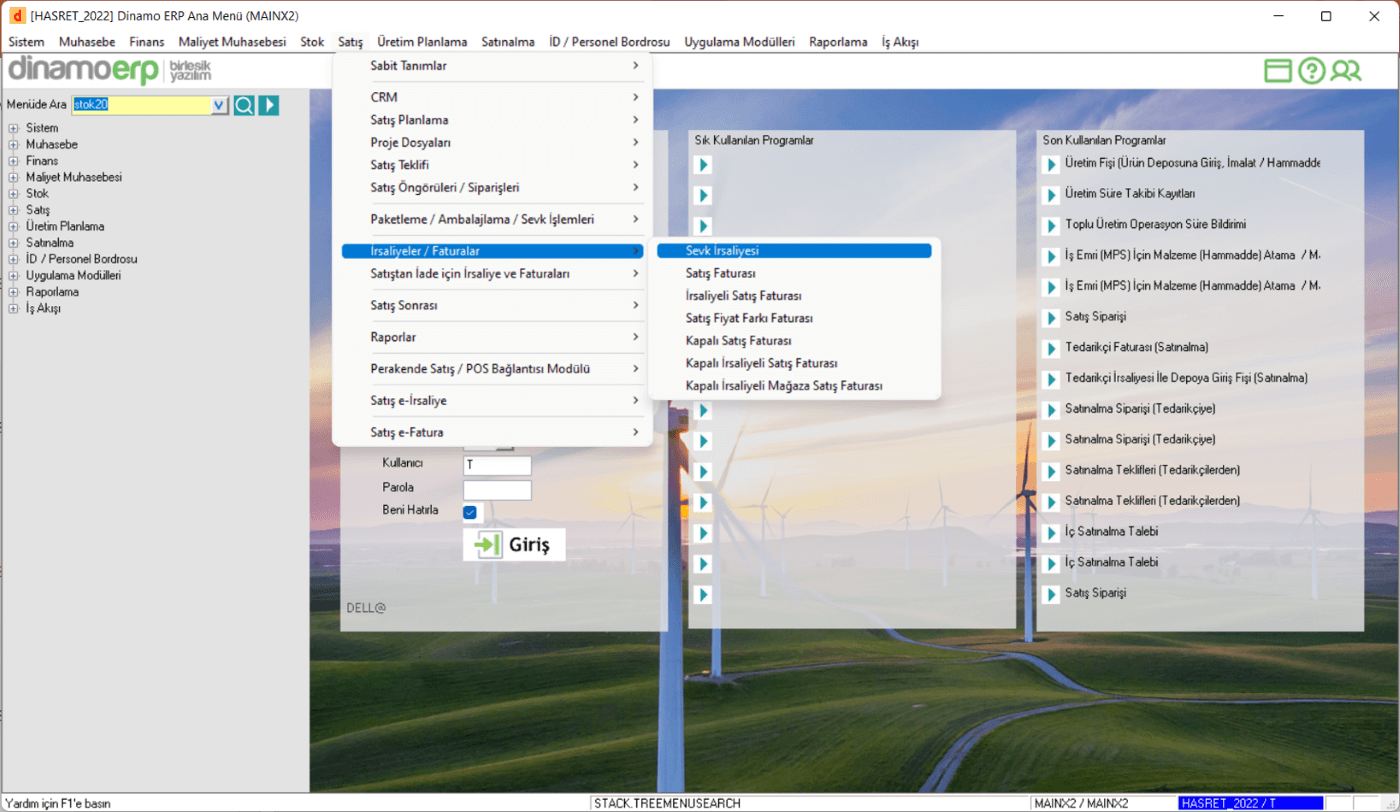
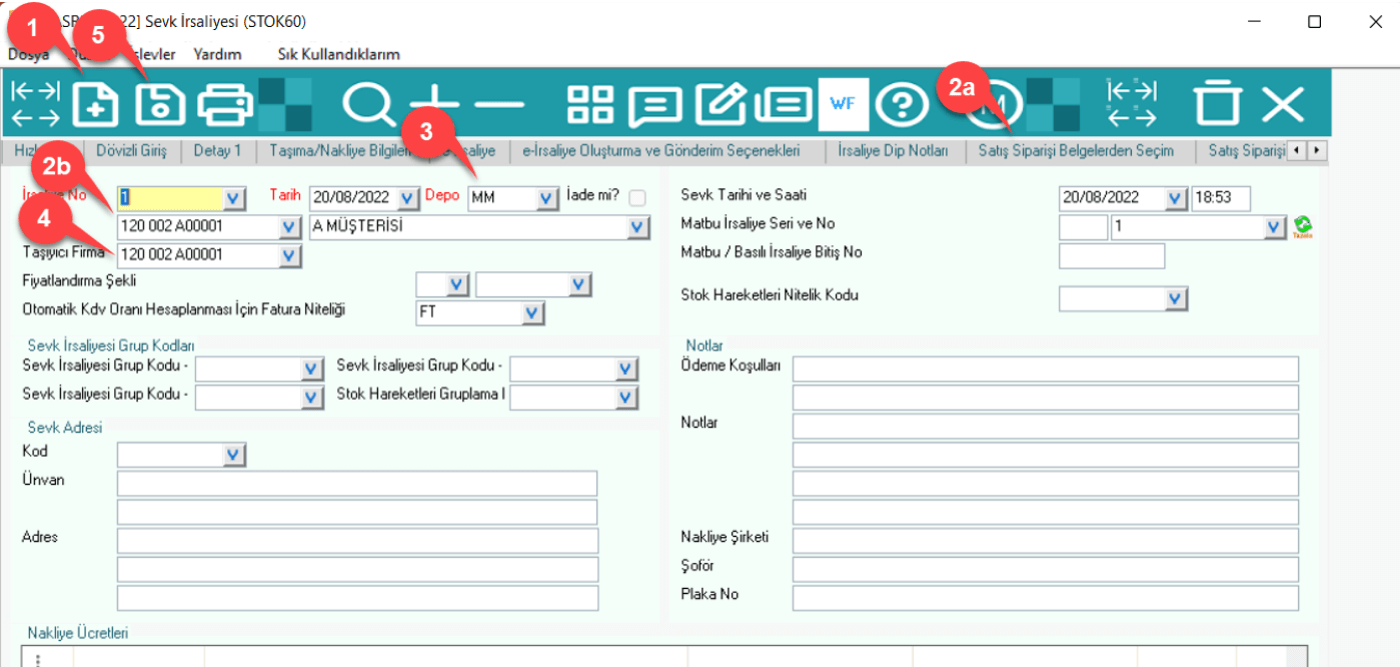
Shipment (STOK60): This is the document in which the manufactured material or commercial material is shipped so that the inventory reduction is ensured.
Stages of shipment preparation at Dinamo Erp:
· After selecting the Waybills/Invoices option in the sales module, the Shipment option is selected.
· A new document is created.
· A waybill can be created from order documents, as well as a waybill can be created by entering material information from the Quick Login tab.
· The warehouses to be checked out are selected.
· The carrier company is selected.
· The document is saved.
5.2 Sales Invoice (STOCK70)
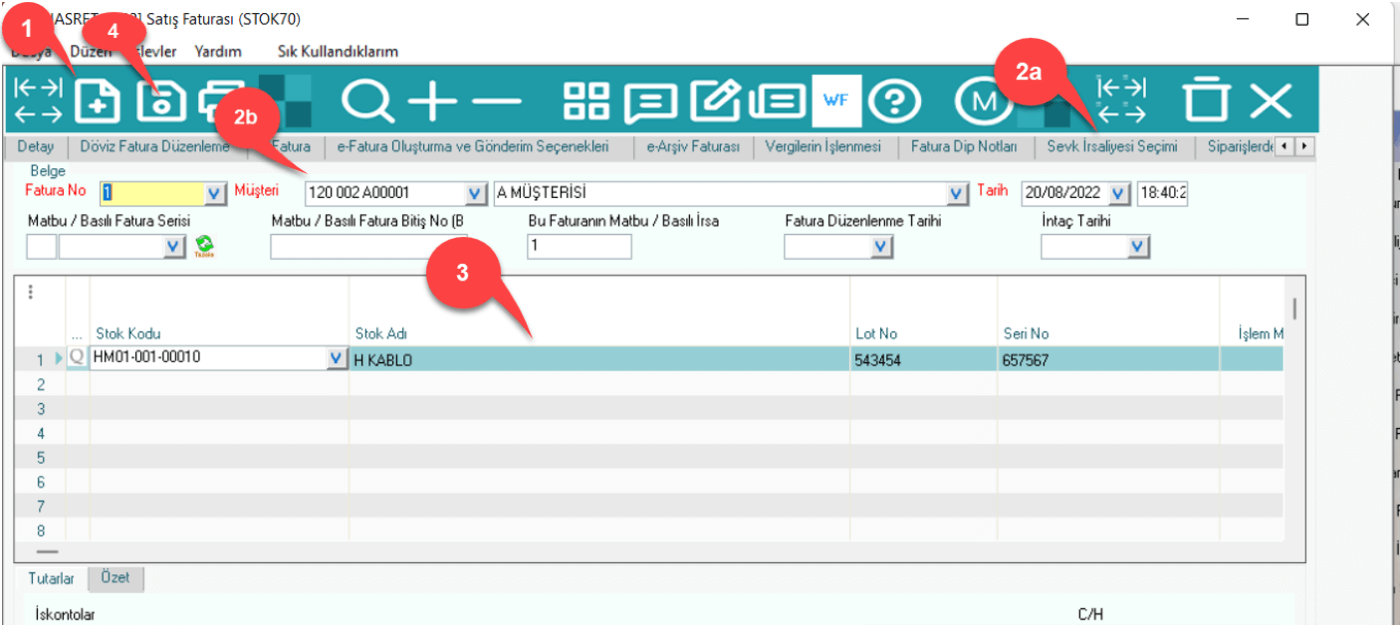
Sales Invoice (STOK70): This is the application in which the sales invoice of the manufactured material or commercial material is issued.
Stages of preparing a sales invoice in Dinamo Erp:
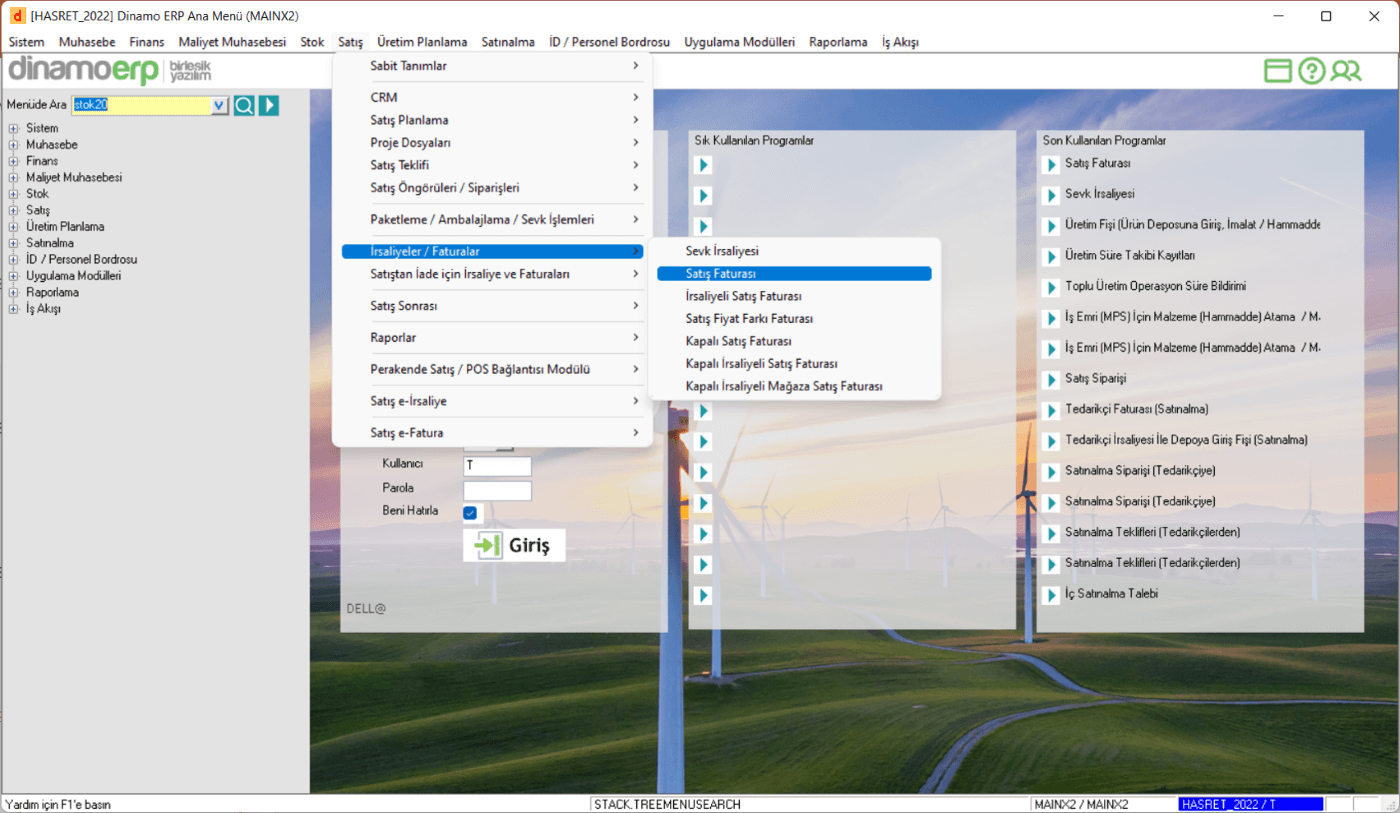
· After selecting the Waybills/Invoices option in the sales module, the Invoice option is selected.
· A new document is created.
· An invoice can be created from waybill documents, as well as an invoice can be created by entering material information from the Quick Login tab.
· The document is saved.